
Visual countdown for PowerPoint
Radial Timer for PowerPoint — Visual Circular Countdown
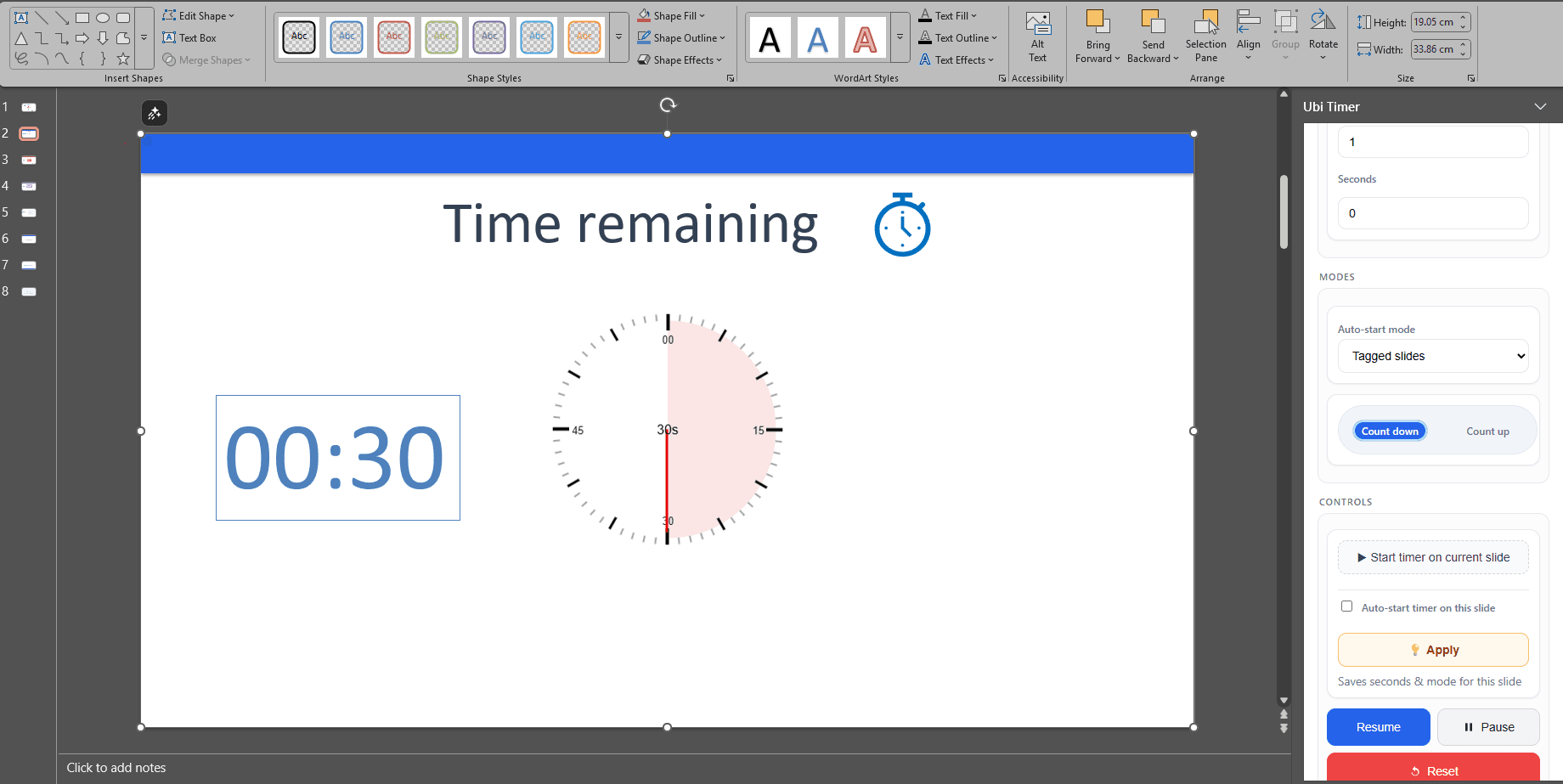
A radial timer for PowerPoint shows the remaining time visually as a circular ring reduces during the countdown. It gives students, participants and audiences an immediate visual indication of how much time remains.
UbiTimer includes a radial timer option for PowerPoint, combining a visual circular countdown with live presentation timing.
What Is a Radial Timer?
A radial timer — sometimes called a circular countdown timer or visual timer — represents the remaining duration using a circle or ring that changes as time passes.
A digital timer communicates time through numbers such as 05:00. A radial timer adds a visual representation of that remaining time, making it easier to judge progress at a glance.
This can be particularly useful when people need to understand the remaining time without constantly reading the numerical display.
Radial Timer vs Digital Timer in PowerPoint
Both timer styles show how much time remains, but they communicate that information differently.
| Feature | Radial Timer | Digital Timer |
|---|---|---|
| Time display | Visual ring plus timing information | Numerical minutes and seconds |
| At-a-glance progress | Easy to judge visually | Requires reading the displayed time |
| Best for | Visual timing and highly visible activities | Precise numerical countdowns |
| Typical uses | Lessons, workshops, transitions and visual activities | Presentations, meetings and general timing |
How to Add a Radial Timer in PowerPoint with UbiTimer
UbiTimer lets you configure a circular visual countdown directly from the PowerPoint task pane.
- Open UbiTimer Open your presentation and launch the UbiTimer task pane.
- Choose the radial timer style Select the radial or circular timer option.
- Set your duration Choose the amount of time required for the activity or presentation.
- Configure the timer Adjust the available appearance and timer settings.
- Insert or start the timer Use the timer with the slide or presentation workflow you have chosen.
- Test in Slide Show Run the presentation and confirm the timer is positioned and displayed as expected.
When to Use a Circular Countdown Timer in PowerPoint
Lesson Starters
Give a class a clear visual indication of the time remaining for an opening activity.
Group Work
Keep a visible countdown on screen while participants complete a timed collaborative task.
Transitions
Use a short visual timer when people need to move, reset or prepare for the next activity.
Training Sessions
Give workshop participants a visual indication of how much activity time remains.
Revision and Practice
Time questions, practice exercises or review activities with a clearly visible countdown.
Presentations
Use a circular timer when a visual indication of elapsed or remaining time works better than numbers alone.
Style and Position Your PowerPoint Radial Timer
A radial timer should remain visible without covering important slide content. Position and appearance matter particularly when the presentation is being shown on a projector or large display.
Choose a Clear Position
Place the timer away from titles, diagrams, questions and other presentation content that must remain visible.
Use Suitable Contrast
Choose timer colours that remain easy to distinguish against the slide background.
Choose an Appropriate Size
Make the timer large enough for the room and display being used without allowing it to dominate the slide.
Test Before Presenting
Run the deck in Slide Show mode to confirm that the timer remains clear on the actual presentation screen.
Can a Radial Timer Continue Across PowerPoint Slides?
Yes. UbiTimer can combine radial timing with its Global Timer workflow when you need the same timer to continue while moving through multiple slides.
This is useful when the timed activity or presentation section spans several slides rather than being confined to one slide.
Learn more about Global Timer for PowerPoint or see the guide to using a timer across PowerPoint slides.
Can You Make a Circular Timer Without an Add-In?
You can approximate a visual countdown using standard PowerPoint tools or prerecorded media, but these methods work differently from a dedicated live radial timer.
PowerPoint Animations
Shapes and animations can be combined to create visual timing effects, but setting up and changing the sequence manually can take time.
Countdown Video
A prerecorded circular countdown can be inserted as a video, but its duration and appearance are fixed by the recording.
Online Visual Timer
A browser-based timer can provide a visual countdown, but it runs separately from the PowerPoint presentation.
If you want to compare all the main countdown methods, see how to add a countdown timer in PowerPoint .
Radial Timer Troubleshooting
The timer is difficult to see
Increase the timer size, improve contrast and move it away from visually busy areas of the slide.
I need the timer on several slides
Use Global Timer when the same countdown needs to continue as the presentation advances.
Global Timer guide →I want the timer to start automatically
Use an Auto-Start workflow when you need timing to begin based on the presentation settings you configure.
Auto-Start Timer guide →I need a timer for different slide sections
Timer Groups are designed for separate timed slide ranges within the same presentation.
Timer Groups guide →Radial Timer PowerPoint FAQ
What is a radial timer in PowerPoint?
A radial timer is a visual countdown that uses a circular ring or similar display to represent the remaining time. UbiTimer provides a radial timing option for PowerPoint.
Is a radial timer the same as a circular timer?
The terms are commonly used for the same general idea: a timer that represents time visually through a circle or ring rather than relying only on a numerical display.
Can I change the duration of the radial timer?
Yes. In UbiTimer you can configure the duration required for your countdown rather than using a fixed prerecorded timer.
Can I customise the radial timer appearance?
UbiTimer provides appearance controls for supported radial timer settings. Available options depend on the current UbiTimer version and plan.
Can the radial timer run across multiple slides?
Yes. Radial timing can be used with UbiTimer's Global Timer workflow when one timer needs to continue as you move through slides.
Can a radial timer start automatically?
UbiTimer supports Auto-Start workflows for advanced timing scenarios. See the PowerPoint Auto-Start Timer guide for more information.
Is the radial timer included in Classroom Free?
Radial Timer is an advanced UbiTimer feature. Classroom Free provides everyday countdown and count-up timing. Check the pricing page for the current plan comparison.
Related PowerPoint Timer Guides
Explore more UbiTimer guides for countdowns, classroom timing, automatic timers and presentation-wide timing.
Add a Visual Circular Timer to PowerPoint
Use UbiTimer when you want a live radial countdown inside PowerPoint, with advanced timing workflows available for presentations that need more than a basic per-slide timer.