
Countdown timers for PowerPoint
PowerPoint Countdown Timer — 5-Minute, 10-Minute & Custom Timers
Add a PowerPoint countdown timer directly to your presentation for lessons, workshops, meetings and timed activities. Choose 5 minutes, 10 minutes, a custom duration, or count down to a specific clock time with UbiTimer.
UbiTimer gives you a live countdown inside PowerPoint without having to build long animation sequences or switch to a separate browser timer. For count-up timing, per-slide timers and other presentation timing options, see the full PowerPoint timer overview.
Choose the PowerPoint Countdown Timer You Need
The right timer depends on the activity. UbiTimer lets you choose a preset duration or set your own timing.
5-Minute Timer
Useful for lesson starters, short discussions, warm-ups, transitions and quick group activities.
10-Minute Timer
Useful for workshops, revision tasks, independent work, quizzes and longer discussions.
Custom Countdown
Set the duration required for your lesson, presentation, meeting or training activity rather than relying on a fixed preset.
How to Add a Countdown Timer in PowerPoint with UbiTimer
If you want a timer directly inside PowerPoint, the basic UbiTimer workflow is straightforward.
- Open UbiTimer Open your presentation and launch the UbiTimer task pane.
- Set the duration Choose a preset or enter the countdown time you want.
- Choose your timer settings Select the available display and behaviour options for your timer.
- Insert the timer Add the timer to the PowerPoint slide and position it where you want it.
- Run your presentation Start Slide Show and use the timer during your activity or presentation.
Want the full step-by-step walkthrough, including alternative methods? See how to add a countdown timer in PowerPoint .
Use UbiTimer for a Live Countdown Inside PowerPoint
UbiTimer is designed specifically for presentation timing. Instead of constructing a timer manually with text boxes and animations, you can configure the countdown from the UbiTimer task pane.
- Countdown timers
- Count-up timers
- Custom durations
- Per-slide timing
- Global Timer across slides
- Radial timers
- Presenter-Only timing
- Timer Groups
Classroom Free is available for everyday PowerPoint timing. Advanced features are available with eligible paid plans.
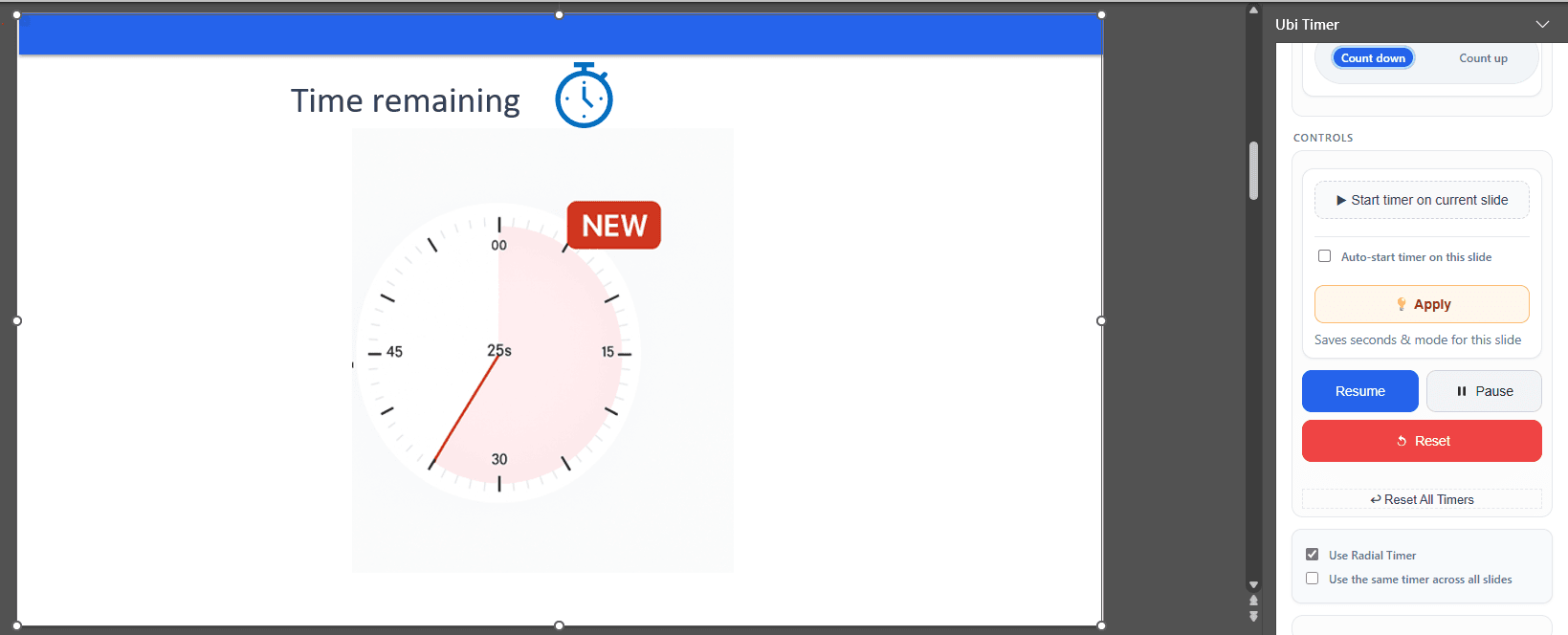
5-Minute Countdown Timer in PowerPoint
A 5-minute PowerPoint timer works well when an activity needs enough time for meaningful work without taking over a lesson, workshop or meeting.
Common examples include:
- lesson starters
- retrieval practice
- short group discussions
- meeting exercises
- quick writing tasks
10-Minute Countdown Timer in PowerPoint
A 10-minute PowerPoint timer is useful for longer activities where participants need time to think, discuss or complete a structured task.
Common examples include:
- independent work
- workshop activities
- revision tasks
- breakout discussions
- timed presentation exercises
Countdown to a Specific Time in PowerPoint
Sometimes you do not want to calculate a duration at all. You know the exact clock time when something should begin or end.
UbiTimer's Countdown to Time option lets you choose a target clock time and count down towards it.
Your presentation is already running while people arrive and the session begins at 10:00 AM. Set the target time to 10:00 and UbiTimer calculates the remaining countdown for you.
See the full PowerPoint Countdown to a Specific Time guide for setup instructions, examples and target-time countdown behaviour.
This is useful for event starts, lessons, meetings, worship services, breaks and other situations tied to a specific clock time.
Need the countdown to remain visible as you move through slides? See how to keep a timer running across PowerPoint slides .
PowerPoint Countdown Timer: Add-In vs Animations vs Web Timer
There are several ways to create a countdown. The best choice depends on whether you want the timer integrated into your PowerPoint workflow.
PowerPoint Timer Add-In
Best when you use timers regularly and want the countdown to work as part of the presentation.
- Quick timer setup
- Custom durations
- Reusable across presentations
- Advanced timing workflows available
PowerPoint Animations
A manual countdown can be created using text boxes and animation sequences.
- No add-in required
- Suitable for very short countdowns
- More time-consuming to create
- Harder to edit and reuse
Online Web Timer
A browser timer can work when the countdown does not need to appear directly inside the slide deck.
- Useful for large displays
- No PowerPoint setup required
- Usually requires another window
- Separate from the presentation
Can a PowerPoint Countdown Timer Continue Across Slides?
Yes. If your activity spans several slides, UbiTimer can use a Global Timer so the same countdown continues as you move through your presentation.
This is different from inserting an independent timer onto each slide. One continuous timer keeps counting down regardless of which slide in the presentation you are viewing.
Learn more about Global Timer for PowerPoint or see the problem-focused guide to using a timer across PowerPoint slides.
Where to Use a PowerPoint Countdown Timer
Give students a clear working window from the start of an activity.
Keep collaborative activities within the planned time.
Time exercises and workshop sections without leaving PowerPoint.
Keep agenda activities and discussion periods moving.
Help speakers work within a fixed amount of time.
Show clearly how much time remains before the next section begins.
Teaching with PowerPoint? See our dedicated PowerPoint timer for teachers guide .
PowerPoint Countdown Timer FAQ
Does PowerPoint have a built-in countdown timer?
PowerPoint does not provide a simple dedicated live countdown timer control. You can build a countdown using animations or use a timer add-in such as UbiTimer.
How do I add a 5-minute countdown timer to PowerPoint?
With UbiTimer, set the timer to five minutes, insert it onto the slide and run your presentation. You can also build a manual countdown with PowerPoint animations if you only need a simple one-off timer.
Can I add a 10-minute countdown timer?
Yes. Select or enter a 10-minute duration in UbiTimer and use the countdown during your presentation.
Can I set a custom countdown duration?
Yes. You can configure a custom duration instead of using a standard five- or ten-minute timer.
Can I count down to an exact clock time?
Yes. UbiTimer supports Countdown to Time, allowing you to choose a specific target time rather than manually calculating the remaining duration.
Can the countdown continue when I change slides?
Yes. Global Timer Mode can keep the same timer running as you move through multiple PowerPoint slides. It is an advanced UbiTimer feature.
Can I show the countdown only to the presenter?
UbiTimer also provides Presenter-Only timing for supported workflows. See the PowerPoint Presenter Timer guide .
Can I use countdown timers for classroom activities?
Yes. Countdown timers are useful for starters, revision, group work, silent tasks, quizzes, transitions and other timed classroom activities.
Related PowerPoint Timer Guides
Add a Countdown Timer to PowerPoint
Use UbiTimer for 5-minute, 10-minute and custom PowerPoint countdowns, or choose advanced timing features when you need timers that run across slides, start automatically or stay visible only to the presenter.