
Timer Across Slides PowerPoint — Keep One Countdown Running
Need a timer across slides in PowerPoint that keeps running as you move through your presentation? UbiTimer’s Global Timer lets one countdown or count-up continue across multiple slides without restarting every time you advance.
For countdown, count-up, per-slide and other presentation timing options, see the main PowerPoint timer overview.
You can also use Countdown to time when you know exactly when the timer should finish. Set a target clock time such as 10:00 AM, and UbiTimer automatically calculates the time remaining and keeps the countdown synchronised across your slides.
Note: Global Timer and Countdown to time are advanced UbiTimer features available in Pro Lifetime, Presenter Plus and Team / School plans.
Why Use a Timer Across Slides in PowerPoint?
A normal slide timer works well when one activity belongs to one slide. But many lessons, workshops, meetings and presentations continue across several slides. In those situations, restarting the timer every time you change slides can interrupt the flow and make it harder for the audience to know how much time is really left.
UbiTimer’s Global Timer keeps one continuous timer running across the presentation, so the displayed time stays consistent as you move forwards, backwards or loop through slides.
This is especially useful for:
- Classroom activities where instructions, hints and model answers appear on different slides
- Revision or silent work where students need to see the same remaining time throughout
- Workshops and training where one activity spans several prompts or stages
- Meetings and discussions that continue while you move through agenda slides
- Pre-event announcement slides that rotate before a fixed start time
- Worship services, conferences and events where the countdown needs to reach zero at an exact clock time
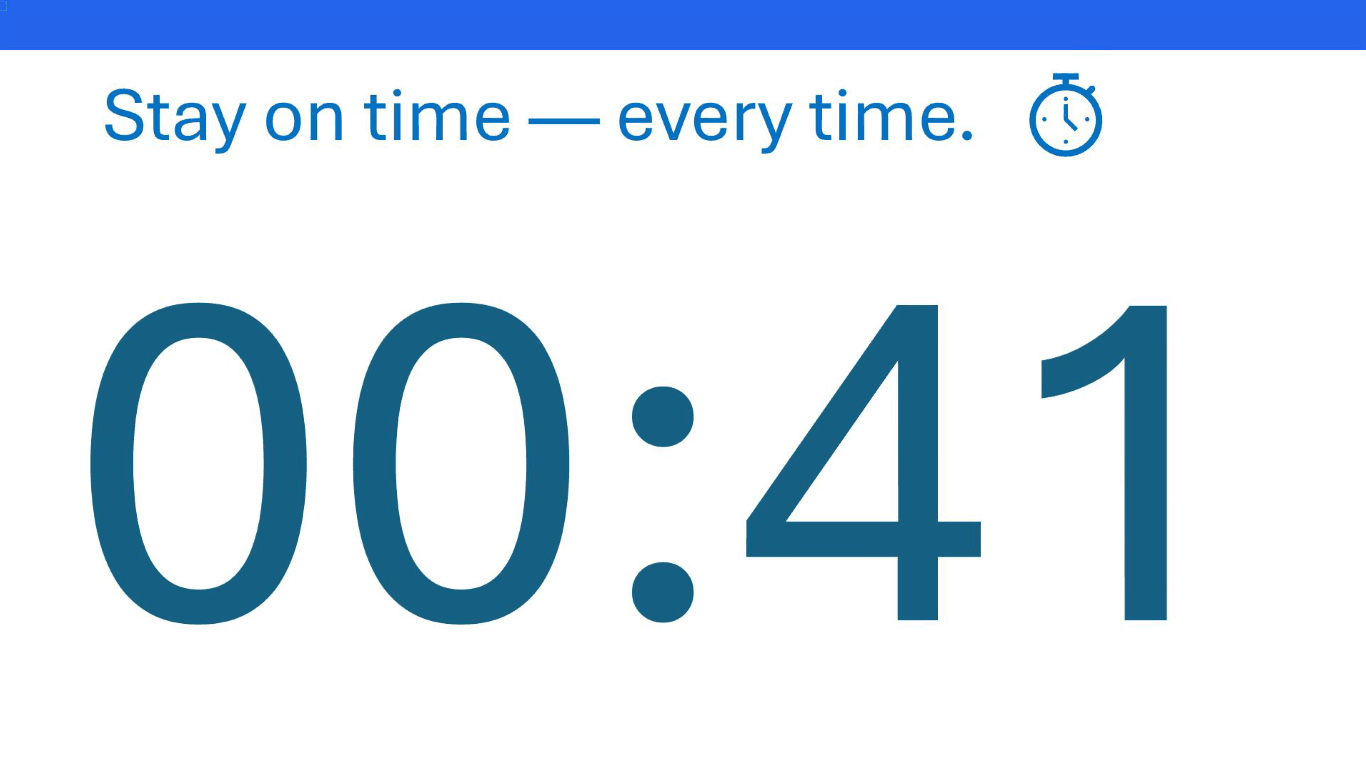
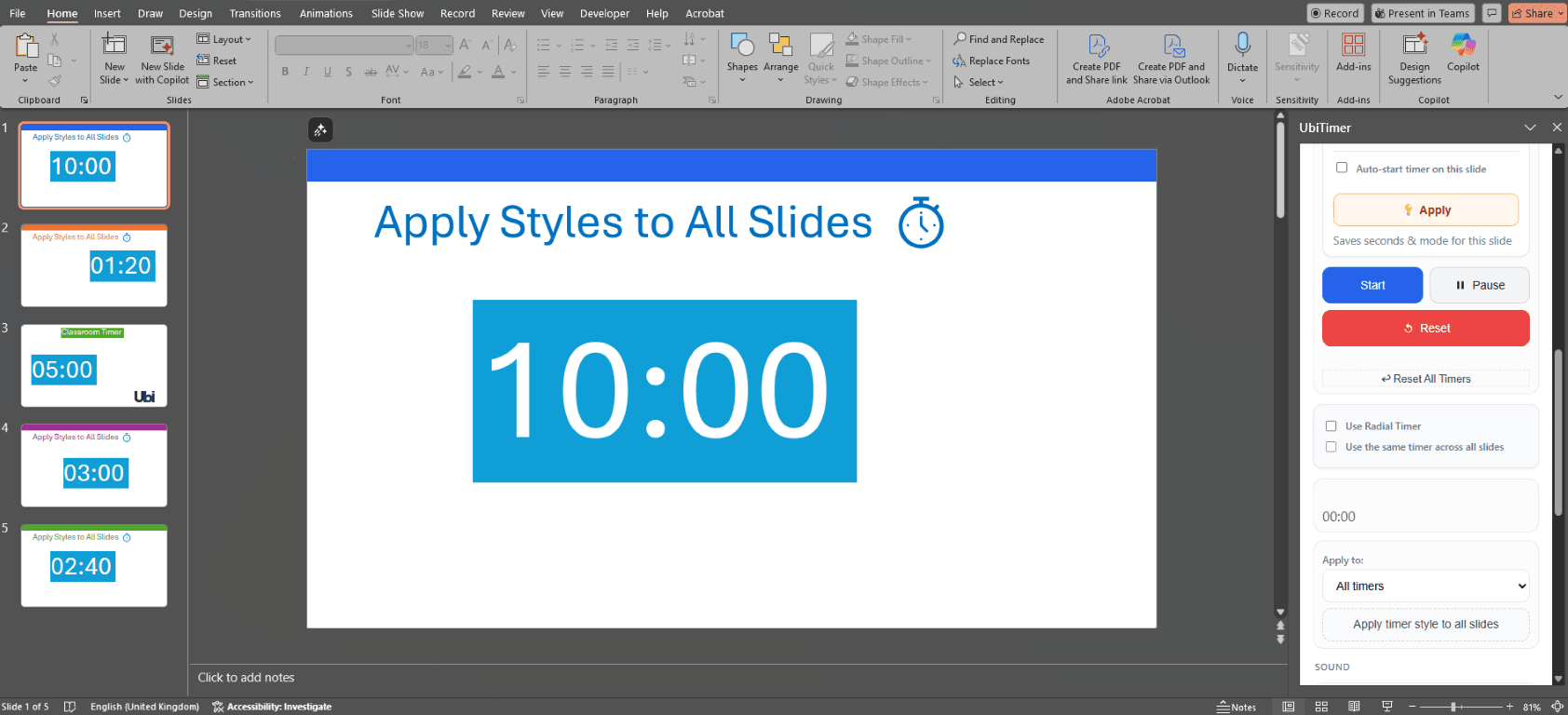

How to Keep One Timer Running Across PowerPoint Slides
PowerPoint does not provide a simple built-in countdown that automatically follows you across slides. UbiTimer adds this behaviour directly inside PowerPoint without requiring a separate browser timer or complicated animation sequence.
- Open your presentation in PowerPoint.
- Go to Home → UbiTimer to open the UbiTimer taskpane.
- Choose a countdown or count-up timer.
- Set the duration, such as 5 minutes, 10 minutes or 15 minutes.
- Enable Use the same timer across all slides.
- Start the timer and begin Slide Show mode.
- Move through your slides normally — the same timer continues running.
You can pause, resume or reset the timer from UbiTimer while presenting.
Countdown to a Specific Time Across PowerPoint Slides
Sometimes you do not know how long the countdown should be. You simply know the exact time when it needs to finish.
For example, suppose a worship service, conference session or meeting begins at 10:00 AM. Your announcement presentation may begin at 9:45, 9:51 or 9:57. Instead of calculating how many minutes remain, choose Countdown to time and set the end time to 10:00 AM.
UbiTimer automatically calculates the time remaining from the current clock time and keeps the countdown synchronised across your slides. If the presentation loops back to the first slide, the timer does not restart — it continues counting down toward the same target time.
Example
- Event starts: 10:00 AM
- Announcement slideshow starts: 9:47 AM
- End time selected: 10:00 AM
- Countdown begins at approximately: 13:00
- Timer reaches 00:00: 10:00 AM
This makes Countdown to time particularly useful for rotating announcement decks, waiting slides, pre-session presentations and any event that begins at a fixed clock time.
Examples of Using One Timer Across Multiple Slides
Classroom Examples
- 10-minute silent revision while moving between questions, hints and model answers
- 5-minute starter activities spread across several slides
- Group work where instructions and scaffolds appear on different slides under one shared countdown
- End-of-lesson review activities where students can always see the remaining time
Presentation and Training Examples
- Breakout activities where different prompts appear while the overall timer continues
- Roundtable discussions running for a fixed duration across agenda slides
- Timed challenges where each stage appears on a different slide
- Conference presentations where the speaker needs one continuous timer for the full session
Events and Pre-Session Slides
- Church or worship-service announcements counting down to the service start time
- Conference holding slides counting down to the next session
- Training-room welcome slides counting down to the workshop start
- Meeting or webinar slides counting down to a scheduled start time
Duration Countdown vs Countdown to Time
UbiTimer gives you two ways to define a countdown, depending on what you know in advance.
Countdown by duration
Use this when you know how long an activity should last.
For example, set a 10-minute countdown for a classroom task, workshop exercise or discussion.
Countdown to time
Use this when you know exactly when the countdown should finish.
For example, set the timer to finish at 10:00 AM and let UbiTimer calculate the remaining duration automatically.
How This Compares with Built-In PowerPoint Options
PowerPoint can control animation timings and slide transitions, but it does not provide a simple built-in live timer that automatically continues across slides or counts down to a target clock time.
You can create timer effects manually with shapes and animations, but these are harder to maintain and do not provide the same live controls during a presentation.
UbiTimer’s Global Timer is designed specifically for this use case, keeping timing visible and consistent while you navigate your deck. You can learn more about PowerPoint’s built-in presentation features in the official Microsoft PowerPoint help centre .
FAQ — Timer Across Slides in PowerPoint
- Does PowerPoint have a built-in timer that continues across slides?
- PowerPoint does not include a simple built-in live countdown that automatically follows you from slide to slide. UbiTimer’s Global Timer provides this behaviour inside PowerPoint.
- Can I make a PowerPoint countdown end at a specific time?
- Yes. Choose Countdown to time, select a target clock time such as 10:00 AM, and UbiTimer automatically calculates the remaining time and counts down to it across your slides.
- What happens if my slideshow loops back to the first slide?
- The global countdown continues toward the same target. It does not restart simply because the presentation returns to an earlier slide.
- Is Global Timer included in Classroom Free?
- Global Timer and Countdown to time are advanced features. They are available in supported paid UbiTimer plans, with preview access available for eligible free users.
- Can I use Global Timer with radial timers?
- Yes. UbiTimer supports digital and radial timer displays with Global Timer where the selected plan includes those features.
- Can I pause or reset the timer during a presentation?
- Yes. You can pause, resume and reset the timer using the UbiTimer controls.
- What happens if I select an end time that has already passed?
- UbiTimer will ask you to choose a future end time rather than automatically assuming the same time on the following day.
If your presentation needs to count down to an exact start time rather than a fixed duration, see PowerPoint Countdown to a Specific Time .
Keep One PowerPoint Timer Running Across Your Slides
Use UbiTimer Global Timer when you need one continuous countdown or count-up across a presentation. Or choose Countdown to time when the timer needs to reach zero at an exact clock time.
Get Pro Lifetime — $19.99 Compare UbiTimer Plans
Want to explore all UbiTimer timing options? See the PowerPoint Timer overview, visit the support page, or compare UbiTimer plans.