
PowerPoint Auto-Start Timer
PowerPoint Timer Starts Automatically
Want your PowerPoint timer to start automatically when a slide appears? UbiTimer can start a countdown when you reach selected slides, helping lessons, training activities and presentations begin on time without an extra click.
Auto-Start is useful for lesson starters, timed questions, transitions, workshops and presentation sections where the timer should begin as soon as the relevant slide appears.
Auto-Start is an advanced UbiTimer feature. Classroom Free is available for everyday PowerPoint countdown and count-up timing. See the pricing page for plans that include Auto-Start.
Why Use an Auto-Start PowerPoint Timer?
When your PowerPoint timer starts automatically, you remove one more action from your presentation workflow. Instead of reaching the slide and then remembering to start the timer, the timing can begin when the slide appears.
Lesson Starters
Begin a five-minute Do Now or retrieval task as soon as students see the activity slide.
Timed Questions
Start a countdown automatically when a quiz, exam-practice or discussion question appears.
Transitions
Use a short countdown for changing tasks, moving groups or packing equipment away.
Training Activities
Begin group exercises, reflection periods or workshop tasks as soon as the instruction slide appears.
Presentation Sections
Start a timed section when you reach the relevant slide without interrupting your delivery to press another control.
Repeatable Routines
Build predictable timing into presentations that you use regularly for lessons, training or meetings.
How to Make a PowerPoint Timer Start Automatically with UbiTimer
PowerPoint can automate animations and media, but it does not provide a simple built-in live countdown control designed for this workflow. UbiTimer provides dedicated Auto-Start settings for PowerPoint timers.
- Open UbiTimer in PowerPoint Open your presentation and launch the UbiTimer task pane.
- Choose your timer Set the countdown or timing configuration you want to use.
- Choose an Auto-Start workflow Select the appropriate Auto-Start behaviour, such as Tagged Slides or First Slide Only.
- Configure the relevant slide If you are using Tagged Slides, enable Auto-Start behaviour on the slides where the timer should begin automatically.
- Apply your settings Save the timer and slide behaviour settings.
- Test in Slide Show Run the presentation and confirm that the timer begins when the expected slide appears.
Need the exact settings for Tagged Slides, First Slide Only and manual start? See the UbiTimer Auto-Start Timer Guide .
UbiTimer Inside PowerPoint
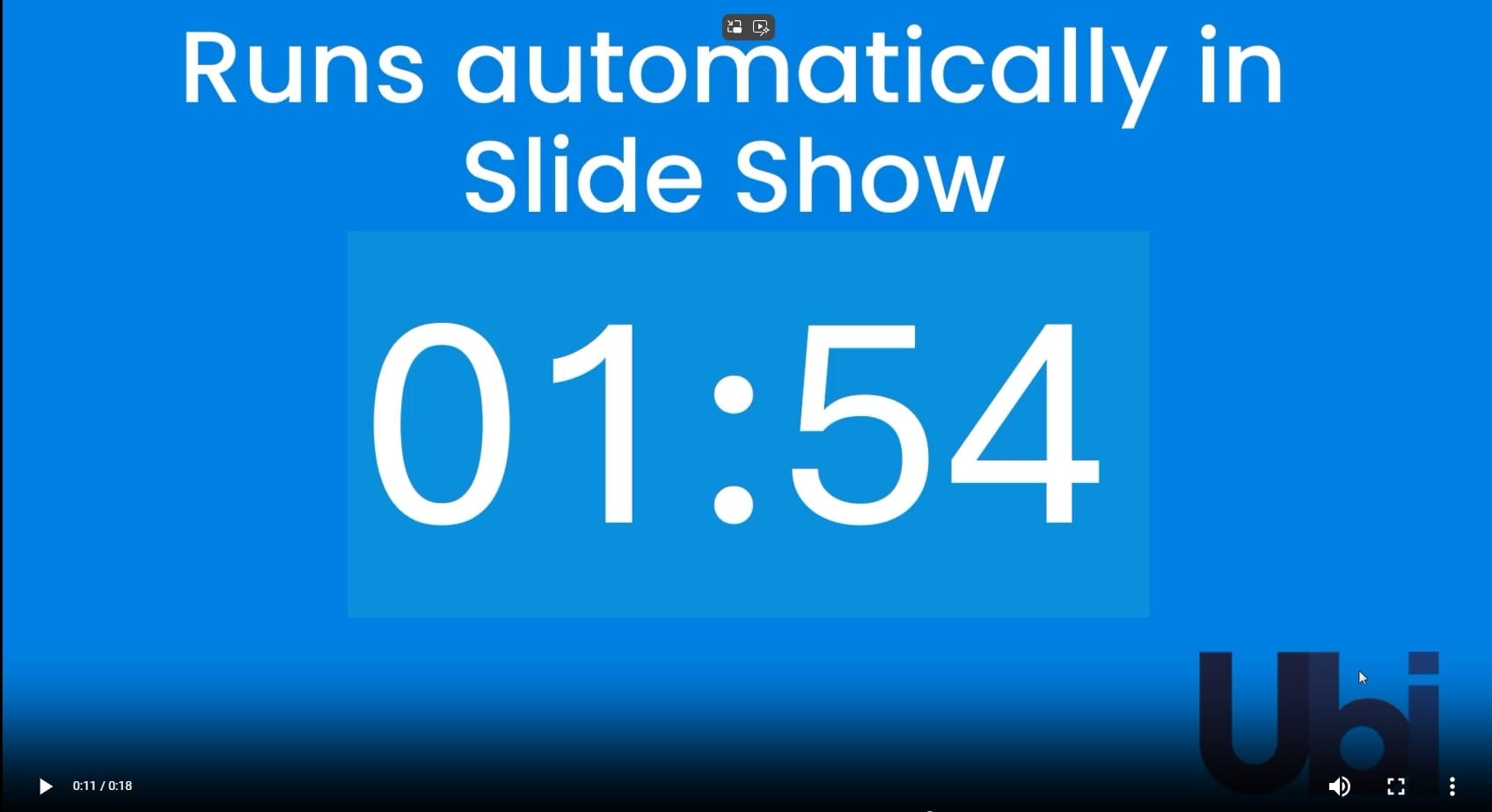
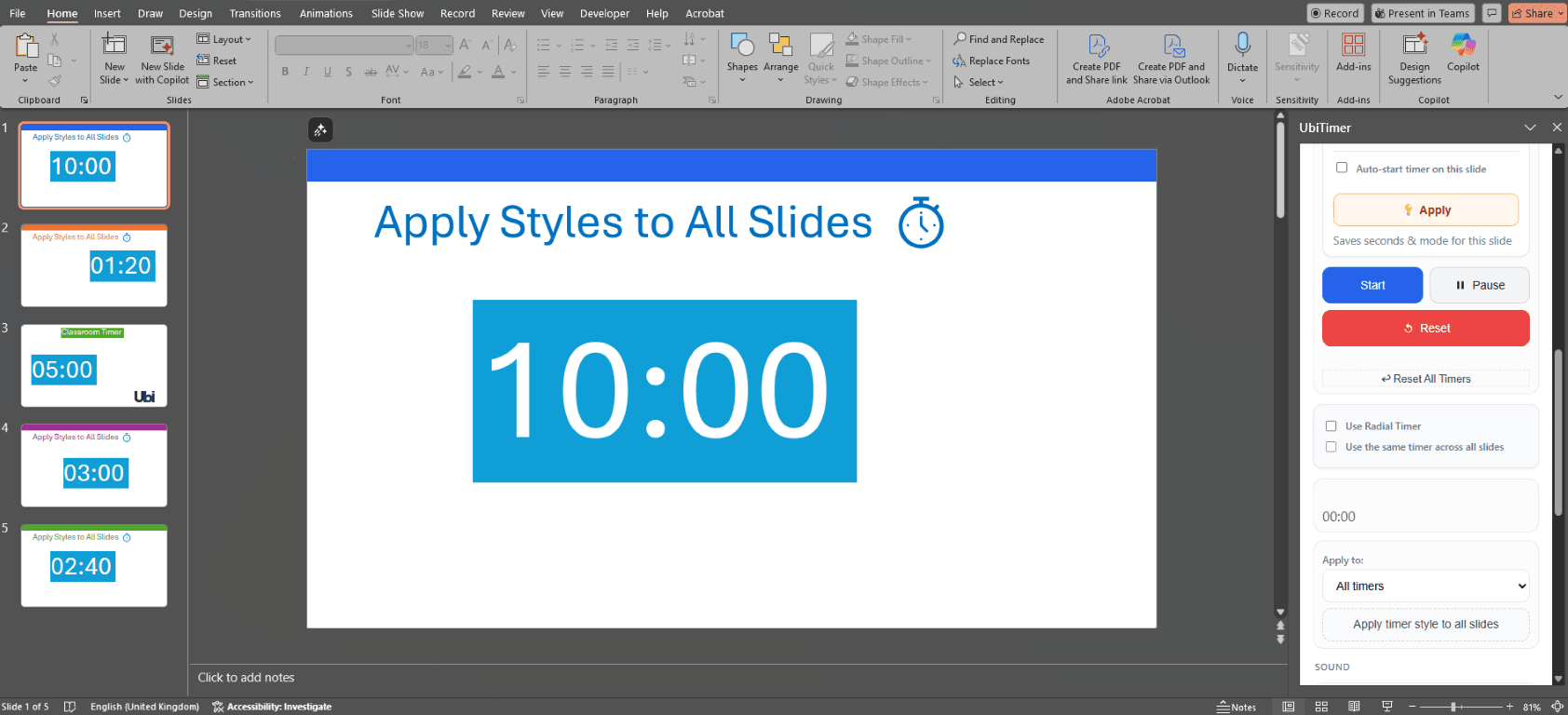

Examples of PowerPoint Auto-Start Timers
5-Minute Starter
The timer begins when the starter slide appears, giving students a clear five-minute working period.
30-Second Transition
Start a short countdown automatically when it is time to switch tasks or prepare for the next activity.
Exam-Style Practice
Begin a fixed countdown when a timed question or practice activity is displayed.
Workshop Task
Start a group exercise timer as soon as participants reach the instruction slide.
Reflection Window
Automatically begin a one- or two-minute reflection period when the prompt appears.
Timed Presentation Section
Start timing a specific section of a presentation without interrupting your flow to press Start.
Auto-Start Timer vs Built-In PowerPoint Timing
PowerPoint includes tools for automatically playing animations, media and slide transitions. Those tools are useful when you want PowerPoint itself to control a sequence.
A live timer has a different purpose. It displays countdown or elapsed time during the presentation and may need controls such as start, pause, resume or reset.
UbiTimer provides a timer-specific workflow without requiring you to build a countdown from a long sequence of PowerPoint animations.
You can also learn more about PowerPoint's own presentation features from the Microsoft PowerPoint support pages .
Which UbiTimer Plan Includes Auto-Start?
Classroom Free
Classroom Free is designed for everyday PowerPoint countdown and count-up timing on individual slides.
Advanced UbiTimer Plans
Auto-Start is available with eligible paid plans. Depending on the plan, you can also access advanced features such as Global Timer, radial timing, presenter-only timing and Timer Groups.
PowerPoint Auto-Start Timer FAQ
Can a PowerPoint timer start automatically?
Yes. UbiTimer includes Auto-Start workflows that can start a timer automatically based on the presentation settings you configure.
Does PowerPoint include a built-in auto-start countdown timer?
PowerPoint can automatically run animations and media, but it does not provide a simple built-in live countdown control designed specifically for presentation timing.
Can I choose which slides start the timer automatically?
Yes. UbiTimer supports Auto-Start workflows such as Tagged Slides and First Slide Only. See the UbiTimer Auto-Start Timer Guide for detailed setup instructions.
Can I turn Auto-Start off?
Yes. You can use manual timer behaviour when you do not want the timer to begin automatically.
Can Auto-Start be used with different timer styles?
Auto-Start can be used with supported UbiTimer timing configurations. Availability of advanced timer styles and features depends on your plan.
Does Auto-Start work during PowerPoint Slide Show?
Yes. Auto-Start is designed for presentation workflows in Slide Show mode. Test the presentation before presenting live to confirm that your selected slide behaviours work as expected.
Is Auto-Start included in Classroom Free?
Auto-Start is an advanced UbiTimer feature. Classroom Free provides everyday PowerPoint timing, while eligible paid plans include advanced workflows such as Auto-Start. Check the pricing page for the current feature comparison.
Related PowerPoint Timer Guides
Make Your PowerPoint Timer Start Automatically
UbiTimer helps teachers, trainers and presenters run live timers directly with PowerPoint. Configure Auto-Start when you want a timer to begin as part of your presentation workflow without an extra click.