
PowerPoint timer comparison
Best PowerPoint Timer Add-Ins & Countdown Options
The best PowerPoint timer add-in or countdown method depends on how you present. Some people only need a simple fixed countdown. Others need a live timer that can pause, continue across slides or remain visible only to the presenter.
This guide compares PowerPoint's built-in timing tools, animation timers, browser timers, VBA or macro timers and dedicated PowerPoint timer add-ins so you can choose the approach that fits your workflow.
What Makes a Good PowerPoint Timer?
A timer that works well for one presentation may be inconvenient for another. Before choosing a solution, consider what you actually need the timer to do while presenting.
Visibility
Decide whether the countdown should be visible to the audience, the presenter or both.
Live Controls
Consider whether you need to pause, resume, reset or adjust the timer during the presentation.
Across-Slide Timing
If the presentation moves through several slides during one activity, check whether the timer can continue as slides change.
Setup
Think about how much time you want to spend building or configuring the timer before the presentation.
Reusability
Regular presenters may benefit from timer settings that can be reused across presentations and activities.
Your PowerPoint Environment
Confirm that the selected approach works in the PowerPoint environment and device you plan to use.
PowerPoint Timer Options Compared
These approaches solve slightly different timing problems. There is no single method that is best for every presentation.
| Option | On-slide countdown | Live controls | Setup effort | Best suited to |
|---|---|---|---|---|
| PowerPoint slide timings | No dedicated live countdown | Limited | Low | Rehearsal and automatic slide advancement |
| Animation timer | Yes | Limited | Medium to high | Simple fixed-duration countdowns |
| Browser timer | Usually separate | Yes | Low | Occasional or informal use |
| VBA / macro timer | Possible | Varies | High | Technical users and custom solutions |
| Dedicated timer add-in | Yes | Typically designed for live timing | Low to medium | Regular PowerPoint presentation timing |
If your main requirement is a reusable live countdown inside PowerPoint, a dedicated timer add-in is often the most direct approach. If you only need automatic slide progression, PowerPoint's own timing tools may be enough.
1. PowerPoint's Built-In Timing Tools
PowerPoint includes tools for rehearsing a presentation, recording timings and automatically advancing slides. These are useful when you want to practise a presentation or control how long each slide remains visible.
They are not the same as a dedicated live countdown that shows the audience or presenter how much time remains in an activity.
Advantages
- Already part of PowerPoint
- No additional timer tool required
- Useful for rehearsal
- Useful for automatic slide progression
Limitations
- Not a dedicated live countdown control
- Primarily focused on slide timing
- Limited flexibility if the session changes
Best for: rehearsal and presentations where slide advancement follows predetermined timings.
Learn more in our Slide Timing in PowerPoint guide .
2. PowerPoint Animation Countdown Timers
A countdown can be built manually using PowerPoint shapes, numbers, animations and transitions. This avoids installing an additional timer tool and gives you control over the appearance.
The trade-off is setup time and flexibility. A fixed animation sequence is less convenient when the presenter needs to pause, resume or quickly change the duration.
Advantages
- Can be built directly in PowerPoint
- Can match the slide design
- No timer add-in required
- Useful for fixed countdowns
Limitations
- Can take time to build
- Changing the duration may require editing
- Live pause and resume controls are limited
- Animation sequences can become complex
Best for: occasional fixed countdowns where you do not need live timer controls.
3. Browser-Based Timers
An online timer is one of the quickest ways to display a countdown. Open the timer in a browser, choose a duration and start it.
The main drawback is that it usually sits outside PowerPoint. Depending on your setup, you may need another screen or may need to switch away from the presentation to control it.
Advantages
- Quick to start
- Many free options
- No PowerPoint setup required
- Useful for occasional timing
Limitations
- Usually separate from the presentation
- May require switching windows
- Some services depend on network access
- May not fit managed presentation environments
Best for: occasional presentations where having the timer outside PowerPoint is not a problem.
4. VBA and Macro-Based PowerPoint Timers
VBA can be used to create custom timer behaviour inside PowerPoint. For users comfortable with code, this provides considerable flexibility.
However, macro-enabled presentations can introduce additional setup and security considerations, especially when presentations are shared between people or used in managed organisations.
Advantages
- Highly customisable
- Can be integrated into a presentation
- Useful for bespoke workflows
Limitations
- Requires technical knowledge
- Macro policies may restrict use
- Harder to support across multiple users
- Presentation portability can be more complicated
Best for: technical users who need a bespoke PowerPoint timing solution.
5. Dedicated PowerPoint Timer Add-Ins
A dedicated PowerPoint timer add-in is designed to add timer controls to the PowerPoint workflow without requiring the presenter to build an animation sequence or maintain VBA code.
This approach is particularly useful when you use timers regularly and need more than a single fixed countdown.
Live Timing
Dedicated tools can provide countdown and count-up workflows intended for use while presenting.
Timer Controls
Look for controls such as start, pause, resume and reset where those are important to your presentation.
PowerPoint Workflow
Add-ins can keep timer setup and control closer to the presentation rather than requiring a separate timer window.
UbiTimer as a PowerPoint Timer Add-In
UbiTimer is designed specifically for countdown, count-up and presentation timing inside PowerPoint. Classroom Free covers everyday timing, while eligible paid plans add more advanced presentation workflows.
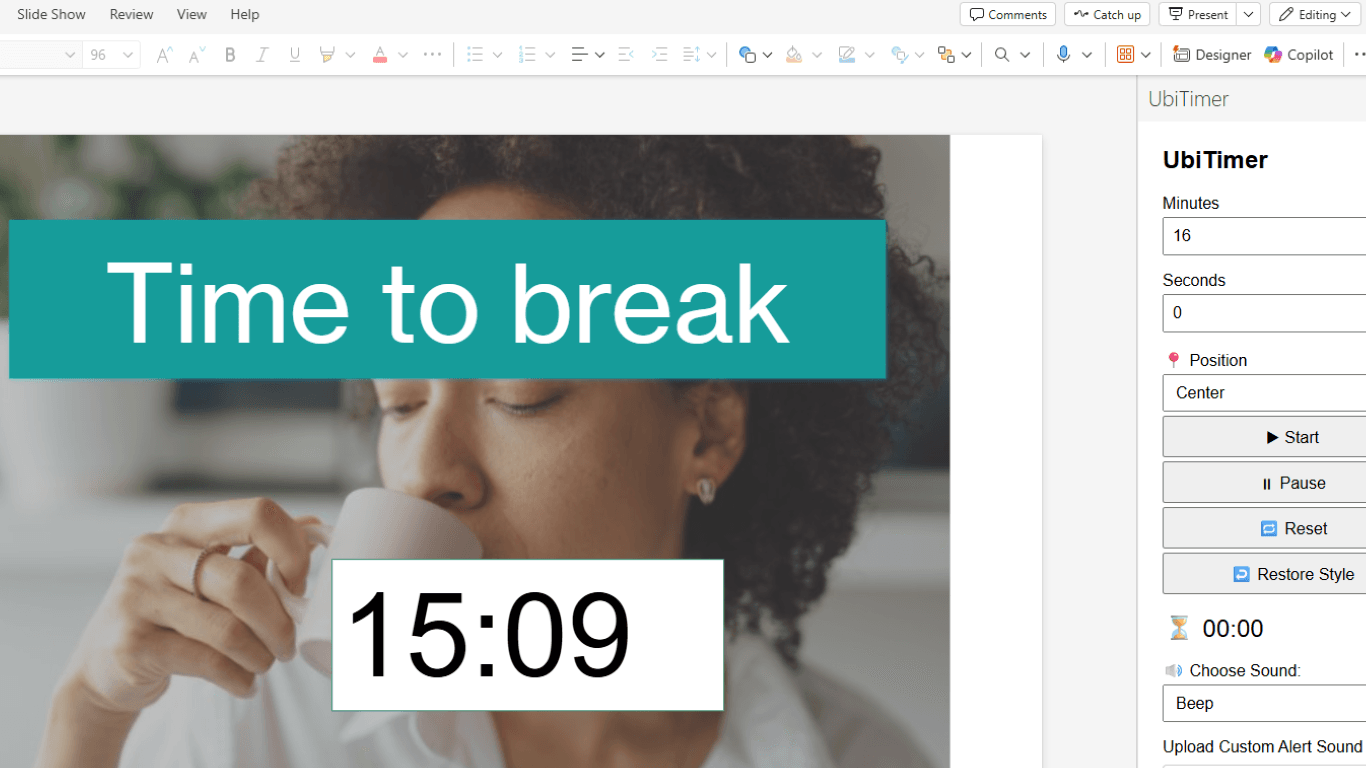
Countdown & Count-Up
Create everyday countdown and elapsed-time workflows.
Global Timer
Keep one timer running while moving through several slides.
Presenter-Only Timer
Monitor presentation timing privately.
Radial Timer
Use a visual circular countdown for remaining time.
Auto-Start
Configure automatic timer starts for supported workflows.
Timer Groups
Use different timing settings for different slide ranges.
Reasons to Consider UbiTimer
- Designed specifically for PowerPoint timing
- Countdown and count-up workflows
- Classroom Free option for everyday timing
- Advanced presentation timing available
- No need to build VBA timer code
Things to Consider
- Advanced features depend on the selected plan
- The add-in should be tested in your PowerPoint environment
- Some organisation settings can affect Office add-ins
Which PowerPoint Timer Option Should You Choose?
| If you need... | Consider... |
|---|---|
| Automatic slide progression | PowerPoint slide timings |
| One simple fixed countdown | PowerPoint animations or a countdown video |
| A separate quick timer | Browser timer |
| A highly customised coded solution | VBA / macro timer |
| Reusable live timing inside PowerPoint | Dedicated PowerPoint timer add-in |
| A timer continuing across slides | An add-in with a Global Timer workflow |
| Private speaker timing | An add-in with Presenter-Only timing |
Best Timer Approach for Different PowerPoint Users
Teachers
A timer add-in can be useful when countdowns are used repeatedly for starters, group work, revision and classroom activities.
Presenters
Live controls, across-slide timing and private presenter timing can be useful for talks and conference presentations.
Trainers
Trainers may benefit from reusable timers for activities, breakout work and timed agenda sections.
See UbiTimer for Trainers .
Schools
Schools should also consider multi-user access, Microsoft 365 policies and how the timer will be supported across staff.
Meeting Facilitators
A visible live timer can be useful for agenda items, discussions and structured meeting sections.
Students
A simple countdown can be useful when practising or delivering timed PowerPoint presentations.
Which Is the Best PowerPoint Timer?
There is no single timer method that is best for every situation. PowerPoint's own timing tools are useful for rehearsal and automatic slide advancement. Animation timers can work well for simple fixed countdowns, while browser timers are convenient when the timer does not need to be part of PowerPoint.
A dedicated PowerPoint timer add-in becomes more useful when you regularly need live controls, reusable timer settings or advanced presentation workflows.
UbiTimer is one such option. It is designed specifically for PowerPoint timing and provides everyday countdown and count-up functionality alongside advanced features for more structured presentation workflows.
Best PowerPoint Timer Add-Ins FAQ
Does PowerPoint have a built-in countdown timer?
PowerPoint includes slide timings, rehearsal tools and animation features, but it does not provide a simple dedicated live countdown timer control equivalent to a purpose-built timer add-in.
Can I build a timer without installing an add-in?
Yes. Timers can be created using PowerPoint animations, countdown videos or other methods. See How to Add a Countdown Timer in PowerPoint for the main approaches.
What is the advantage of a PowerPoint timer add-in?
A timer add-in can provide dedicated timing controls without requiring the presenter to manually construct animation sequences or VBA code.
Can a PowerPoint timer continue across slides?
Some timer tools support presentation-wide timing. UbiTimer provides a Global Timer workflow for keeping one timer running while slides change.
Can I hide a PowerPoint timer from the audience?
UbiTimer provides Presenter-Only timing for situations where the presenter needs the timer without displaying it to the audience.
Is there a free UbiTimer plan?
Yes. Classroom Free provides everyday countdown and count-up timing. Advanced timing features are available with eligible paid plans.
Do timer add-ins work on every version of PowerPoint?
Compatibility depends on the specific add-in and the PowerPoint environment. UbiTimer is designed for supported Microsoft PowerPoint environments, and organisation settings can also affect Office add-in availability.
Related PowerPoint Timer Guides
Try a Dedicated PowerPoint Timer Add-In
If you want countdown and count-up timing inside PowerPoint without building animation sequences or VBA code, try UbiTimer and choose the timing workflow that fits your presentation.