
How to Add a Timer in PowerPoint
Learn three practical ways to add a countdown timer, stopwatch or presentation timer to PowerPoint. We compare manual animations, online timers and a PowerPoint timer add-in, so you can choose the method that fits your presentation.
Add a working timer to PowerPoint in minutes
Install UbiTimer directly from Microsoft Marketplace and add countdown and count-up timers without building complicated animations or switching to a browser during your presentation.
- Runs directly inside PowerPoint
- Countdown and count-up timers included
- No payment required to start

PowerPoint does not provide a built-in visible countdown timer or stopwatch for slides. Presenters therefore tend to use one of three approaches: build a timer with animations, open a separate online timer, or install a timer add-in that works directly inside PowerPoint.
Each method can work, but the right choice depends on how often you need a timer, how much control you want during Slide Show mode and whether you want the timer to feel like part of the presentation.
How to Add a Timer in PowerPoint: 3 Methods
1. Manual animations
Create a basic countdown using text boxes and animation timing.
- No additional tool required
- Suitable for a simple one-off timer
- Time-consuming to edit or reuse
2. Online timer
Run a browser-based timer alongside your PowerPoint slides.
- Fast to start
- Useful for informal sessions
- Requires switching away from PowerPoint
3. PowerPoint add-in
Insert and control a timer directly from PowerPoint.
- Easy to reuse across presentations
- Works naturally with Slide Show mode
- Best for teaching and live presenting
Add a timer directly to your PowerPoint slides
UbiTimer gives you ready-to-use countdown and count-up timers inside PowerPoint, so you do not have to build animations or manage a separate browser window. Start with Classroom Free.
Method 1: Build a Countdown with PowerPoint Animations
You can make a basic countdown without installing anything by placing a series of numbers on a slide and revealing them one after another with animations.
How to create the countdown
- Insert a text box containing the starting number, such as 10.
- Duplicate the text box and change the copies to 9, 8, 7 and so on.
- Place all the numbers in exactly the same position.
- Add an entrance or exit animation to each number.
- Set the animations to start After Previous.
- Preview the slide and adjust the delay or duration.
Advantages
- No add-in is needed
- Suitable for a short, fixed countdown
- The timer can match the slide design
Limitations
- It takes time to build and edit
- Pausing, resetting or extending the timer is difficult
- It is awkward for multiple slides or changing durations
- It is not ideal for regular classroom or training use
Method 2: Use an Online Timer
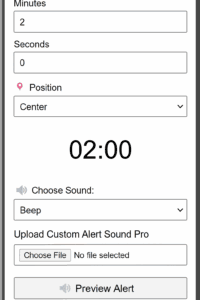
An online timer is useful when you need a countdown quickly and do not mind keeping a browser tab or second screen open.
When this method works well
- short internal meetings
- informal classroom activities
- sessions where a second screen is available
- situations where switching windows is not disruptive
Main drawback
The timer is separate from the presentation. You may need to switch windows, resize applications or rely on another display. That can make the presentation feel less polished and creates more opportunities for something to go wrong during a live session.
Method 3: Add a Timer Directly with a PowerPoint Add-in
A timer add-in is the simplest option when you want the timer to sit inside your presentation and remain easy to control during Slide Show mode.

How to add a timer in PowerPoint using UbiTimer
- Install UbiTimer from Microsoft Marketplace.
- Open PowerPoint and launch UbiTimer from your add-ins.
- Choose a countdown or count-up timer.
- Set the duration and choose how the timer should look.
- Insert the timer onto the current slide.
- Start Slide Show mode and present normally.
Why this method is easier
- The timer appears directly on the slide
- You can reuse it in future presentations
- You avoid building animation sequences
- You do not need to switch to a browser while presenting
- It is easier to manage in lessons, workshops and live events
Install UbiTimer and add your first timer today
Use Classroom Free for everyday countdown and count-up timers. Upgrade when you need advanced tools such as radial timers, global timers, presenter-only timing, timer groups, snapshots and advanced styling.
Which PowerPoint Timer Method Is Best?
| Method | Best for | Main advantage | Main limitation |
|---|---|---|---|
| Manual animations | Simple one-off countdowns | No additional tool required | Slow to build and hard to control |
| Online timer | Quick informal sessions | Fast and easy to open | Separate from the presentation |
| PowerPoint add-in | Teaching, training, meetings and events | Reusable and integrated with PowerPoint | Requires a one-time installation |
Useful Ways to Use a Timer in PowerPoint
For teachers
- count down quizzes, retrieval tasks and independent work
- manage transitions between lesson activities
- show pupils how much working time remains
For trainers and workshop leaders
- time breakout activities and group discussions
- keep multiple presentation sections on schedule
- run repeated activities without rebuilding the timer
For business presenters
- stay within an allocated speaking slot
- keep meetings focused
- make presentations feel more controlled and professional
Tips for Using a Timer Effectively
- Place the timer where it is visible without covering important content.
- Use a clear font and strong contrast so the time can be read from the back of the room.
- Use countdown timers for activities and count-up timers for speaking time.
- Test the presentation in Slide Show mode before the session begins.
- Keep the timer design consistent with the rest of the presentation.
Frequently Asked Questions
Does PowerPoint have a built-in countdown timer?
PowerPoint does not include a built-in visible countdown or stopwatch for slides. You need to create one with animations, use an external timer or install a PowerPoint timer add-in.
Can I add a timer without installing an add-in?
Yes. You can create a basic countdown using text boxes and animations, although it takes more time to build and is less flexible during a live presentation.
What is the easiest way to add a timer to PowerPoint?
For regular teaching, training or presenting, a timer add-in is usually the easiest option because the timer works directly inside PowerPoint and can be reused.
What is the difference between a countdown and a count-up timer?
A countdown timer runs down towards zero. A count-up timer measures elapsed time by starting at zero and increasing.
Can I start with UbiTimer for free?
Yes. Classroom Free includes everyday countdown and count-up timing. Paid plans add advanced presentation features for users who need more control.
Add a timer to your next PowerPoint presentation
Install UbiTimer from Microsoft Marketplace and start with Classroom Free. You can compare paid plans later when you need more advanced timing features.