
3 Easy Ways to Add a PowerPoint Countdown Timer (Free Guide, 2026)
Need a PowerPoint countdown timer for a lesson, workshop, quiz, or presentation? Here are the three easiest ways to add one to your slides: build it with animations, insert a timer video, or use a PowerPoint add-in for the fastest and most flexible setup.
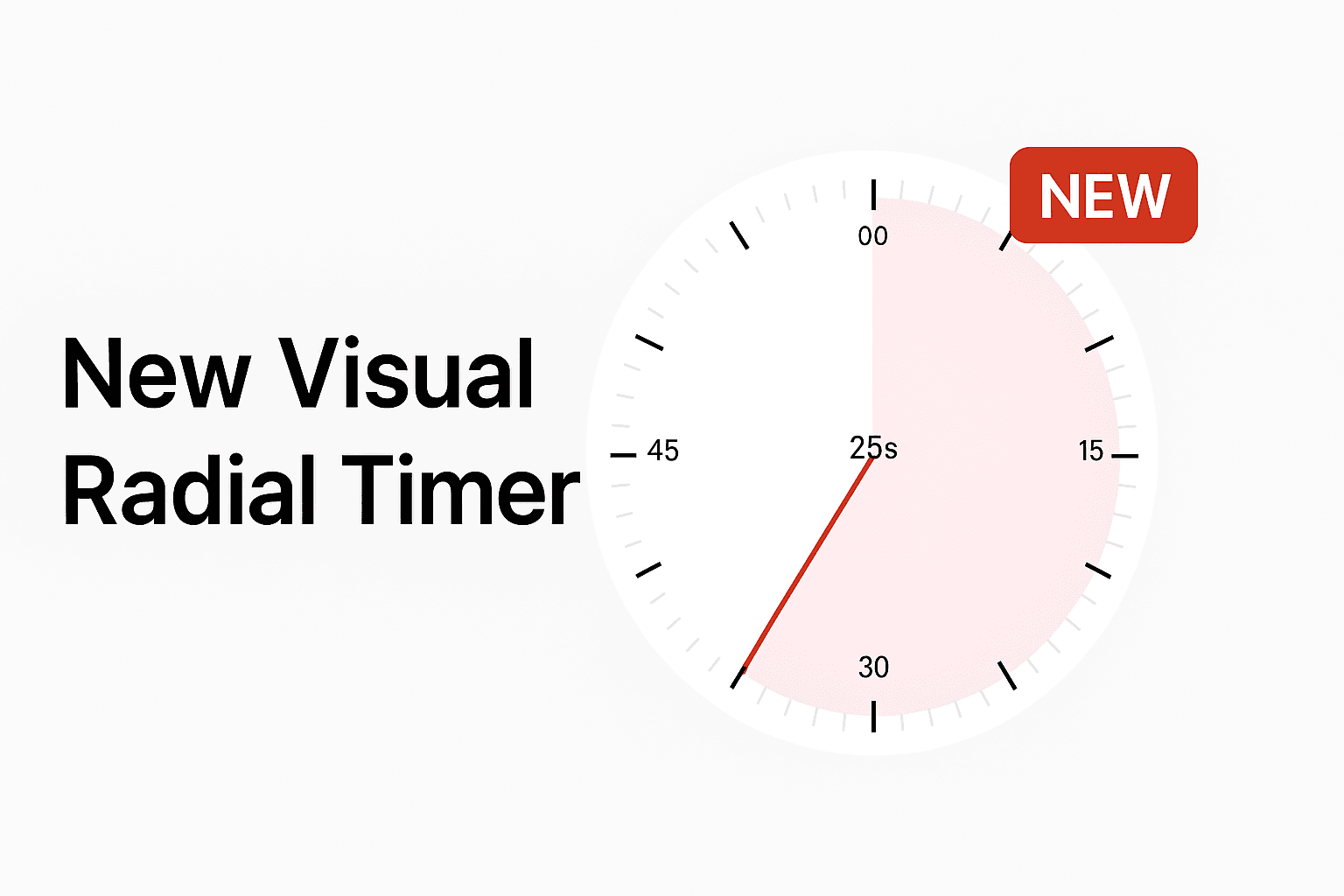
A visible countdown timer helps keep presentations on track, makes activities easier to manage, and gives your audience a clear sense of how much time is left. That is especially useful in classrooms, workshops, and timed talks.
Why Use a PowerPoint Countdown Timer?
- Keep lessons, meetings, and workshops on time
- Make timed activities clearer for students and participants
- Reduce the need to check your phone or another device
- Make presentations feel more polished and controlled
PowerPoint Countdown Timer Methods: Quick Comparison
| Method | Setup time | Best for | Main drawback |
|---|---|---|---|
| Animations | 10–20 minutes | DIY users who want full control | Takes time to build and edit |
| Video timer | 2–3 minutes | Quick one-off countdowns | Fixed length and limited styling |
| Add-in | Under 1 minute | Teachers, presenters, trainers, repeat use | Requires installation |
The 3 Easiest Ways to Add a Countdown Timer in PowerPoint
1) Animations
Create a basic countdown using text boxes, shapes, and animation timing.
2) Timer video
Insert a YouTube or local video countdown and play it automatically on the slide.
3) Add-in
Insert a reusable timer directly inside PowerPoint and control it during Slide Show mode.
Need a PowerPoint timer that actually works?
UbiTimer runs inside PowerPoint, works offline, and supports global, countdown, and classroom-friendly timers.
Try UbiTimer →Method 1: Create a Countdown Timer with PowerPoint Animations
PowerPoint’s animation tools can be used to build a simple countdown. This works best for short, one-off timers where you do not need a lot of flexibility.
How to do it
- Create text boxes with numbers such as 5, 4, 3, 2, 1.
- Place them on top of each other in the same spot.
- Use appear or disappear animations to show each number in sequence.
- Set each one to start After Previous.
- Adjust the duration so the countdown runs at the speed you want.
Pros
- No extra software required
- Works for very simple countdowns
- Can be customised manually
Cons
- Time-consuming to build
- Hard to reuse across multiple presentations
- Less practical for long or frequently changing timers
Method 2: Insert a Video Countdown Timer
A timer video is the fastest no-design option. You simply embed a countdown video into your slide and let it play automatically when the slide starts.
How to do it
- In PowerPoint, go to Insert → Video.
- Choose an online video or upload a saved timer video.
- Resize and position it on your slide.
- Set it to play automatically when the slide opens.
Pros
- Very quick to set up
- Useful for fixed break timers or classroom activities
- No animation building required
Cons
- Fixed duration — you need a different video for each timer length
- Limited styling control
- May feel less integrated than a real slide object
Method 3: Use a PowerPoint Countdown Timer Add-in
If you want the most flexible and reusable option, use an add-in. This is the best choice for teachers, presenters, workshop leaders, and anyone who uses timed slides regularly.
How to add a countdown timer with an add-in
- Install the add-in and open it in PowerPoint.
- Choose your timer type and duration.
- Customise the style, colour, and position.
- Insert it onto your slide.
- Run the presentation in Slide Show mode.
Why this works best
- Much easier to edit than manual animations
- More polished than embedding a video
- Reusable across multiple presentations
- Better suited to countdowns you use often
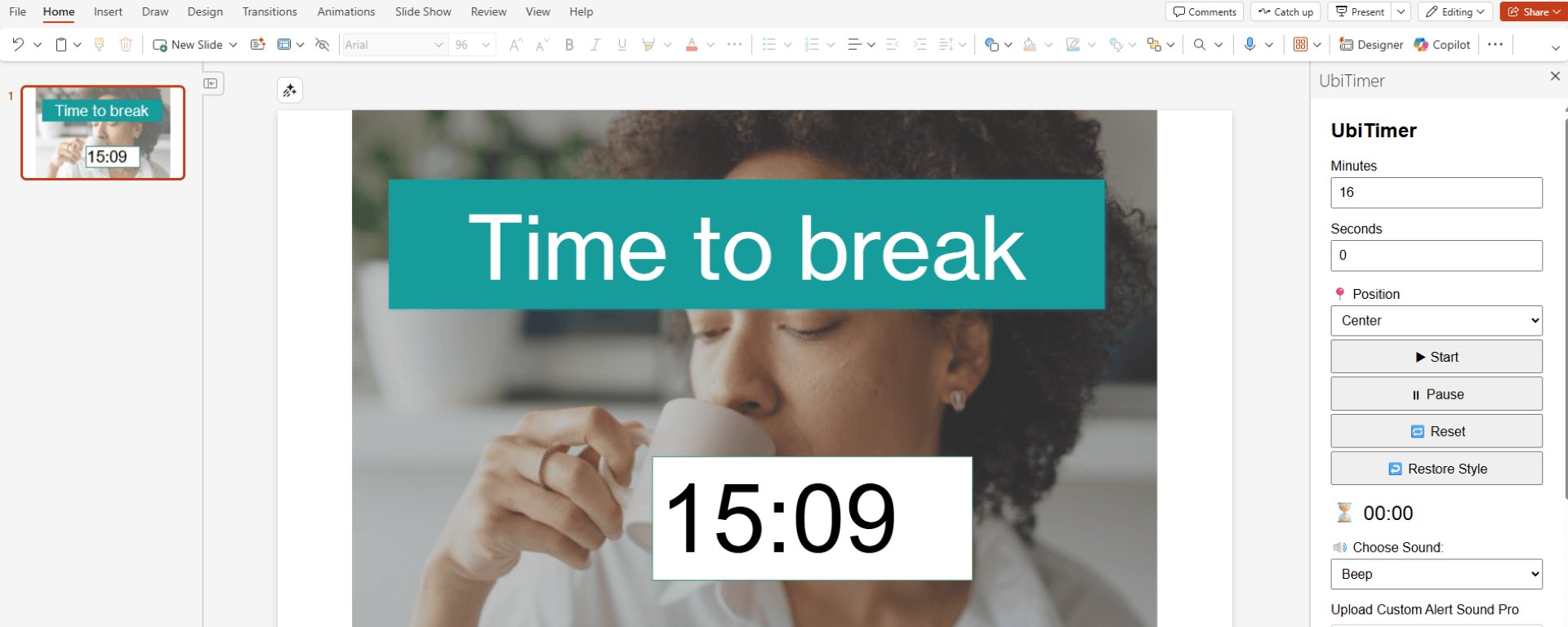
Need a PowerPoint timer that actually works?
UbiTimer runs inside PowerPoint, works offline, and supports global, countdown, and classroom-friendly timers.
Try UbiTimer →Which PowerPoint Countdown Timer Method Is Best?
Choose animations if you want a simple DIY timer and do not mind extra setup.
Choose a video timer if you want the fastest fixed countdown for a single activity.
Choose an add-in if you want a timer that is easier to style, reuse, and manage inside PowerPoint.
Best Use Cases for Countdown Timers in PowerPoint
For classrooms
- timed writing activities
- quizzes and group tasks
- lesson transitions
For workshops and training
- breakout exercises
- short practice sessions
- timed reflection prompts
For presentations and events
- speaker slots
- Q&A countdowns
- keeping a talk on schedule
Quick Tip if Your Countdown Timer Is Not Working
With manual timers, the most common problem is animation timing. If your countdown does not start properly, switch animation triggers from On Click to After Previous and test again.
Frequently Asked Questions
Does PowerPoint have a built-in countdown timer?
No. You need to create one with animations, insert a video timer, or use an add-in.
What is the fastest way to add a countdown timer in PowerPoint?
A timer video is the fastest no-design option, while an add-in is the fastest reusable option.
Can a PowerPoint countdown timer run across multiple slides?
Basic slide animations are limited. Add-ins are usually better if you need more flexible timer behaviour.
Which method is best for teachers?
For regular classroom use, an add-in is usually the easiest to manage and reuse.