
Add a live countdown or count-up timer directly to your PowerPoint slides. UbiTimer runs during Slide Show mode, so you can time lessons, activities and presentations without switching to a separate browser timer.
 Available on Microsoft AppSource · 80,000+ installs across 100+ countries
- ✔ Add a timer to PowerPoint in under a minute
- ✔ Timer runs during Slide Show
- ✔ Countdown and count-up timing
- ✔ Per-slide or presentation-wide timing
Compatible with PowerPoint on Windows and Mac, including Microsoft 365 and supported Office LTSC editions.
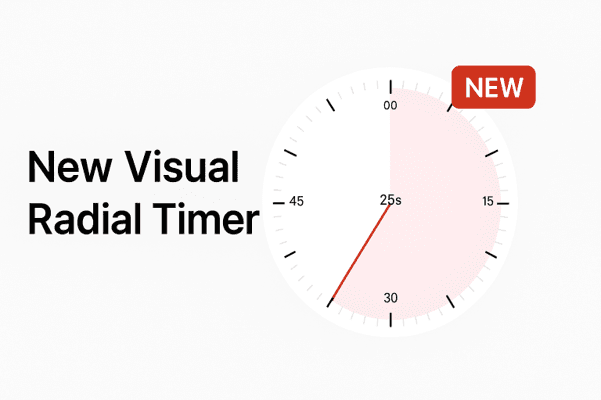
PowerPoint timer add-in
How to Add a Timer to PowerPoint
UbiTimer lets you add a live timer to PowerPoint without manually building animations. Insert a countdown or count-up timer, choose the duration and run it during Slide Show mode.
Add a PowerPoint timer with UbiTimer
- Install UbiTimer from Microsoft AppSource.
- Open your presentation in PowerPoint.
- Insert a countdown timer or count-up timer on any slide.
- Choose the duration, style and position.
- Start Slide Show and present with a live timer.
Why use a PowerPoint timer add-in?
You can create timer effects manually with shapes and animations, but they take longer to build and are harder to manage during a live presentation.
- No complicated animation setup
- Countdown and count-up timing
- Per-slide or presentation-wide timers
- Advanced presenter-only timing when needed
Flexible timing
Use a Timer on One Slide or Across Your Presentation
UbiTimer supports both individual slide timers and presentation-wide timing, so you can choose the PowerPoint timer setup that fits the way you present.
Timer on individual PowerPoint slides
Add different timers to different slides for activities, questions, discussions, exercises or presentation sections.
Per-slide timing is ideal when each part of your presentation needs its own countdown.
One timer that continues across slides
Need the same countdown to keep running when you move to the next slide? UbiTimer Global Timer Mode keeps one timer synchronised across your presentation.
Learn how to keep a PowerPoint timer running across slides →
Why UbiTimer?
Countdown, Count-Up and Advanced PowerPoint Timer Tools
UbiTimer is built specifically for timing inside PowerPoint. Start with Classroom Free for everyday countdown and count-up timing, then upgrade when you need features such as Global Timer, Timer Groups, countdown-to-time and presenter-only timing.
Countdown timer
Add a clear live countdown timer to any PowerPoint slide and keep activities, lessons and presentations on schedule.
Count-up timer
Track elapsed time for Q&A sessions, discussions, rehearsals, classroom activities and presentations.
Per-slide timing
Use different timers for different PowerPoint slides, topics, activities or presentation sections.
Timer across slides
Run one continuous timer across your full PowerPoint presentation, including countdowns that finish at a specific clock time.
Advanced feature
Presenter-only timer
Keep your timer visible to you while presenting without displaying it to your audience.
Advanced feature
PowerPoint on Windows and Mac
Use UbiTimer with supported desktop versions of PowerPoint. Compatibility can depend on your Office version and organisation settings.
Countdown to a Specific Time
Set a target clock time such as 10:00 AM and let UbiTimer calculate the remaining countdown automatically.
Advanced feature
Learn about Countdown to Time →Set Default Timer Colours
Choose your preferred timer background, text colour and countdown fill. Save them as the defaults for both Global and Per-Slide timers, and restore the original colours whenever you like.
Pro feature
Classroom Free available
Need a PowerPoint Timer That Works During Slide Show?
UbiTimer works with your PowerPoint presentation, helping you keep lessons, meetings and presentations on time without switching to another timer app.
Watch UbiTimer in action
See How to Add a Timer in PowerPoint
Watch the latest UbiTimer tutorials to add a live countdown, set different times on individual slides and customise your timer's appearance.
How to Add a Countdown Timer in PowerPoint
See how to create and position a live countdown timer on your slides.
Watch on YouTube →Set Different Timer Durations
Give different PowerPoint slides their own countdown durations.
Watch on YouTube →Change Timer Colours & Size
Make the timer match your presentation's colours and layout.
Watch on YouTube →FAQ
PowerPoint Timer FAQ
Does PowerPoint have a built-in timer?
PowerPoint does not include a simple built-in live countdown timer or stopwatch designed for presentation timing. Timer effects can be created manually with shapes and animations, or you can use a dedicated PowerPoint timer add-in such as UbiTimer.
How do I add a timer to PowerPoint?
Install UbiTimer, open it inside PowerPoint, choose a countdown or count-up timer, set the timing you need and add it to your slide. The timer can then run during Slide Show mode.
Can I add a countdown timer to PowerPoint?
Yes. UbiTimer lets you add live countdown timers directly to PowerPoint slides. You can use common durations such as 5 or 10 minutes or choose your own timing.
Does a PowerPoint timer work during Slide Show mode?
Yes. UbiTimer is designed for live presentation timing and runs during PowerPoint Slide Show mode.
Can a PowerPoint timer continue across slides?
Yes. UbiTimer supports per-slide timers as well as Global Timer Mode, which keeps one timer running as you move through your presentation. See our guide to running a timer across PowerPoint slides .
Can I make a PowerPoint countdown end at a specific time?
Yes. With UbiTimer's Countdown to Time feature, you can choose a target clock time such as 10:00 AM. UbiTimer calculates the remaining time automatically and counts down to your chosen end time.
Can I set different timers for different slides?
Yes. Per-slide timing lets you use different timers for different slides, activities or presentation sections.
Does UbiTimer work on Mac?
Yes. UbiTimer supports PowerPoint on both Windows and Mac, including supported Microsoft 365 and Office LTSC environments.
Is there a free PowerPoint timer?
Yes. UbiTimer Classroom Free includes everyday PowerPoint countdown and count-up timing. Paid plans add advanced features such as Global Timer, presenter-only timing and other presentation tools.
Do I need a separate browser timer?
No. UbiTimer works with PowerPoint, so you can manage presentation timing without switching away to a separate browser timer.
UbiTimer is compatible with Microsoft 365 and supported Office LTSC editions. Please note that Office LTSC 2021 reaches end of Microsoft support in October 2026.
More guides
More PowerPoint Timer Guides
Explore step-by-step guides, troubleshooting help and specialised PowerPoint timer setups.
How to Add a PowerPoint Timer
Step-by-step instructions for adding a timer to your slides.
Timer Across PowerPoint Slides
Keep one countdown running while you move through your presentation.
PowerPoint Timer Not Working?
Troubleshoot common timer problems and PowerPoint setup issues.
Presentation Timer for PowerPoint
Timing tools for talks, meetings, seminars and conferences.
Classroom Timer for PowerPoint
PowerPoint timing tools for teachers, lessons and classroom activities.
Start free
Add a Live Timer to PowerPoint
Install UbiTimer to add countdown and count-up timers directly to your PowerPoint slides and keep presentations on time.
Available on Microsoft AppSource
Made for teachers and presenters
No separate browser timer needed