
Advanced PowerPoint timing
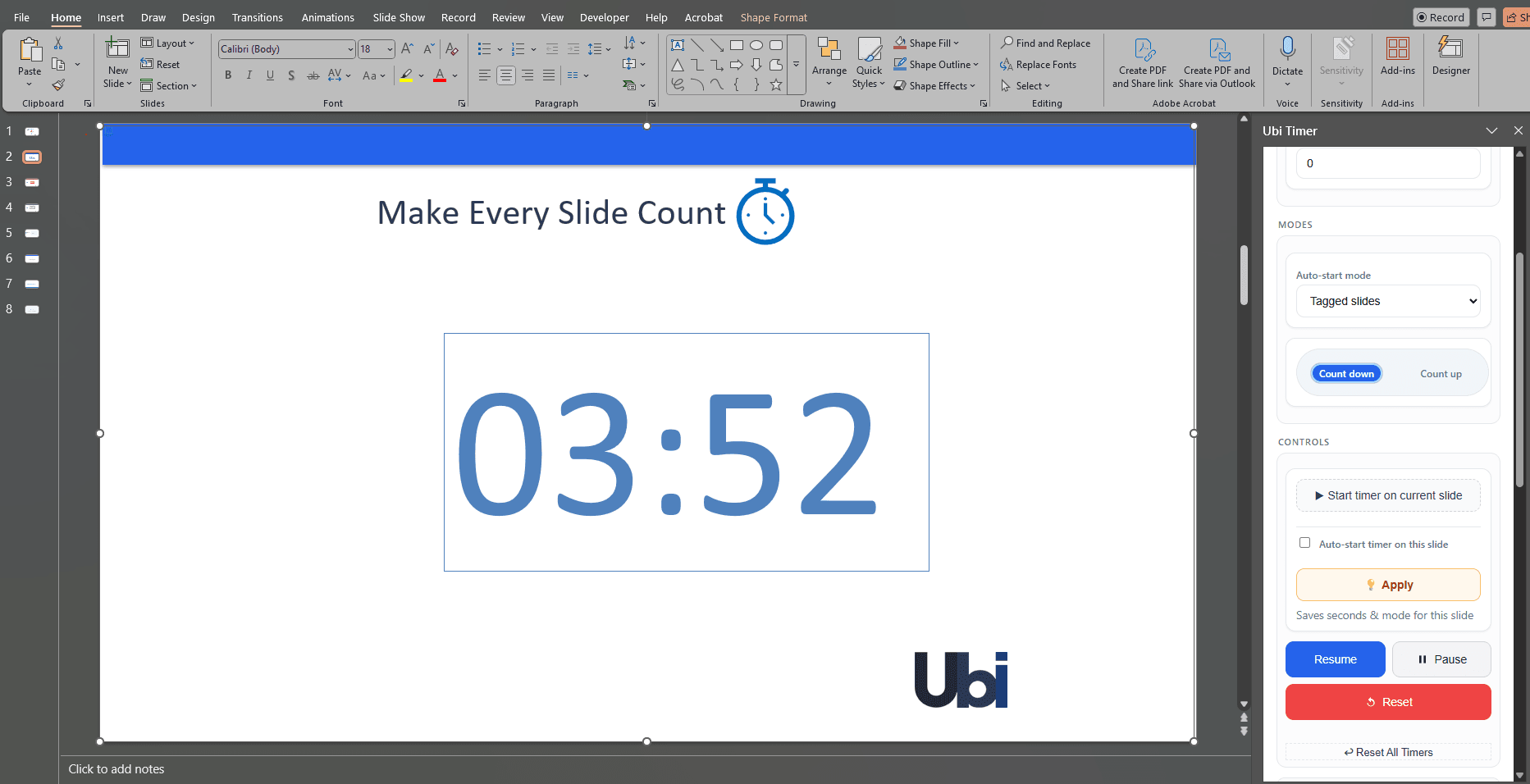
A global timer in PowerPoint lets one countdown or count-up timer continue while you move through your presentation. Instead of restarting the timer each time you change slides, UbiTimer Global Timer Mode keeps the same timing session running.
It is useful for lessons, workshops, revision sessions, meetings, conference talks and any presentation where one activity spans several slides.
Global Timer Mode is an advanced UbiTimer feature. Classroom Free includes everyday per-slide countdown and count-up timing. See the pricing page for plans that include Global Timer.
What Is a Global Timer in PowerPoint?
A PowerPoint global timer is one shared timer that remains synchronised as you move through different slides. The timer is based on one continuing timing session rather than a new countdown beginning on each slide.
One Continuous Countdown
Start a time limit for an activity or presentation section and keep it running as you move between slides.
Consistent Timing
The remaining time stays synchronised rather than restarting every time you navigate through the presentation.
Live Timer Controls
Use timer controls such as start, pause, resume and reset during your presentation workflow.
Countdown or Count-Up
Use a countdown when you have a fixed time limit or count up when you want to track elapsed time.
Global Timer vs Per-Slide Timer
UbiTimer supports different timing workflows depending on whether you want each slide to have its own timer or one timer to control a longer presentation section.
| Timing setup | Per-slide timer | Global Timer |
|---|---|---|
| Best for | Individual activities or slides | Activities or sections spanning several slides |
| When you change slides | Each slide can use its own timing | The same timing session continues |
| Example | 3 minutes for one quiz question | 20 minutes for an entire revision section |
| Plan | Available for everyday timing in Classroom Free | Advanced paid feature |
Why Standard PowerPoint Timers Do Not Behave Like a Global Timer
PowerPoint does not provide a simple built-in live countdown designed to remain synchronised across an entire presentation. Common timer methods are usually tied to an individual slide.
Animation Timers
Timers built from shapes and animations are normally attached to the slide where the animation sequence was created. They can work well for a short fixed countdown but are less convenient for continuous timing.
Video Countdown Timers
A timer video has a fixed duration and is normally tied to the slide containing the media. It is less flexible when you need live timer controls.
Browser Timers
An online timer can run independently, but usually requires switching away from PowerPoint or displaying another window during the presentation.
Global Timer Mode
UbiTimer provides a presentation-wide timer workflow so one timing session can continue as you navigate through PowerPoint.
Searching specifically for a solution to a timer restarting when you change slides? See our guide to using a timer across slides in PowerPoint.
How to Use Global Timer Mode in UbiTimer
Global Timer Mode is designed to make presentation-wide timing simple. The exact controls can vary slightly by UbiTimer version, but the basic workflow is:
- Open UbiTimer in PowerPoint Open the UbiTimer task pane in the presentation you want to time.
- Choose your timer duration Set the countdown duration you need, or choose count-up timing when you want to track elapsed time.
- Select Global Timer Mode Choose the presentation-wide Global Timer option rather than a separate per-slide timer.
- Set the timer appearance Choose a suitable size, style and position for your presentation.
- Test the presentation in Slide Show Start the timer and move through several slides to confirm that the same timing session continues as expected.
Prefer video instructions? Watch the UbiTimer Global Timer tutorial.
When to Use a Global Timer in PowerPoint
Lessons and Revision
Run a 10- or 20-minute task while moving between instructions, examples, questions and model answers.
Workshops and Training
Time a group exercise or practical activity while presenting several supporting slides during the same task.
Conference Presentations
Keep one timing session running while moving through different sections of a talk, demonstration or speaker presentation.
Assemblies and Events
Use a shared countdown for an event section, activity, break or presentation sequence that spans several slides.
Timed Assessments
Give participants a consistent time allowance while showing different prompts, questions or supporting slides.
Meeting Agenda Sections
Allocate a fixed amount of time to a discussion or agenda item even when the presenter needs to use several slides.
Tips for Reliable Global Timer Presentations
- Test before presenting: Run through several slide changes in Slide Show mode before the live session.
- Keep the timer visible: Position it where it does not cover important slide content.
- Use clear contrast: Choose timer text and backgrounds that remain readable on your presentation display.
- Choose the right timer mode: Use per-slide timing for individual tasks and Global Timer for one continuous activity.
- Save your presentation: Save after configuring your timer settings and test the final presentation once.
Global Timer Troubleshooting
The timer restarts when I change slides
Check that you are using Global Timer Mode rather than an individual per-slide timer. Then test the presentation again in Slide Show mode.
The timer does not start in Slide Show
Check that UbiTimer is open and that the timer has been configured correctly. If you are using Auto-Start, confirm its settings separately.
The timer is difficult to see
Increase the timer size, improve colour contrast or use a clearer visual timer style available with your plan.
Global Timer is not available
Global Timer is an advanced feature. Check your current UbiTimer plan and licence status if the option is unavailable.
Need more help? Visit the UbiTimer support centre.
Global Timer PowerPoint FAQ
What is a Global Timer in PowerPoint?
A Global Timer is one continuous countdown or count-up timing session that remains active as you move through different PowerPoint slides.
Can PowerPoint keep one countdown running across slides?
PowerPoint does not include a simple built-in live countdown designed for this workflow. UbiTimer Global Timer Mode provides presentation-wide timing across multiple slides.
Can I pause and resume a Global Timer?
Yes. UbiTimer includes timer controls such as pause, resume and reset for supported timer workflows.
Is Global Timer available in Classroom Free?
No. Classroom Free is designed for everyday per-slide countdown and count-up timing. Global Timer is available with eligible paid plans.
Can I use a count-up timer globally?
Global timing can be useful for both fixed countdowns and elapsed-time workflows, depending on the timer configuration you choose.
Does UbiTimer Global Timer work on Mac?
UbiTimer is designed for supported Microsoft PowerPoint environments on Windows and Mac. Exact behaviour can depend on your PowerPoint version, Microsoft 365 setup and organisation settings.
Related PowerPoint Timer Guides
Keep One Timer Running Through Your PowerPoint Presentation
UbiTimer Global Timer Mode is designed for presentations where one countdown or count-up session needs to continue while you move through multiple slides.
Start with Classroom Free for everyday PowerPoint timing, or compare UbiTimer plans to unlock Global Timer and other advanced presentation tools.