
Timer Across Slides PowerPoint — Keep One Countdown Running
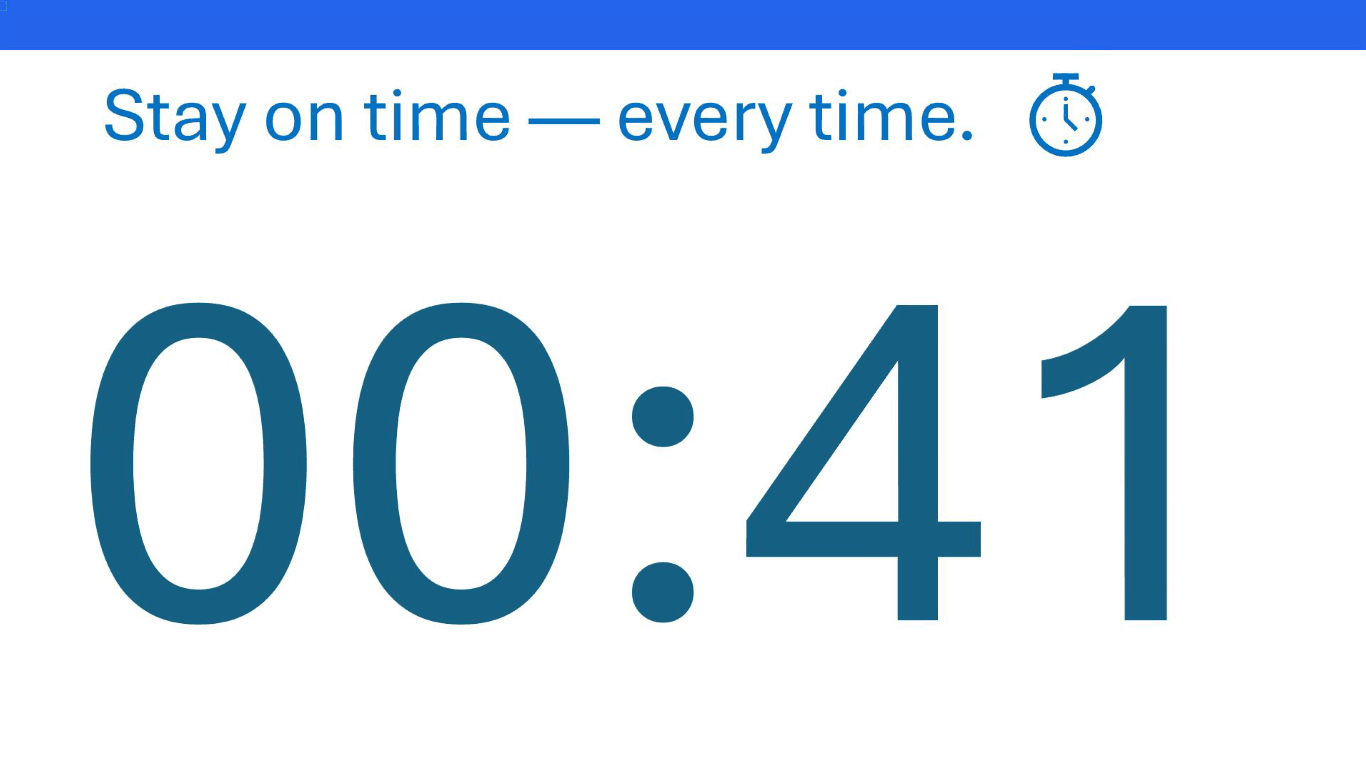
Many teachers and presenters want a timer across slides PowerPoint setup so the countdown does not restart every time they change slides. UbiTimer’s Global Timer Mode solves this by keeping one continuous timer visible as you move through your presentation.
With a timer that runs across slides, you can focus on your lesson, workshop, or talk without worrying about restarting the countdown on every slide.
Why a Timer Across Slides PowerPoint Setup Matters
A timer across slides PowerPoint configuration is essential whenever a task or activity lasts longer than one slide. Without a global timer, each slide change resets the countdown, confusing students and audiences and making time management much harder.
This kind of continuous timer is especially useful for:
- KS3 and KS4 lessons with multi-step questions or model answers spread across slides
- Silent revision blocks where you show hints or scaffolds while time keeps running
- Whole-school assemblies where the same countdown is shown on several slides
- Workshops and training sessions with group tasks split into stages
- Explanations during timed tasks where you need to move back and forth between slides
Instead of juggling a separate timer or repeatedly restarting one, a timer across slides lets everyone see the same countdown no matter which slide you are on.

How UbiTimer Creates a Timer Across Slides in PowerPoint
PowerPoint by itself does not offer a built-in way to run a countdown across multiple slides. You can experiment with animation timings, but that is fragile and difficult to maintain. UbiTimer adds an easy, reliable way to create a timer across slides PowerPoint experience with just a few clicks.
- Open your presentation in PowerPoint.
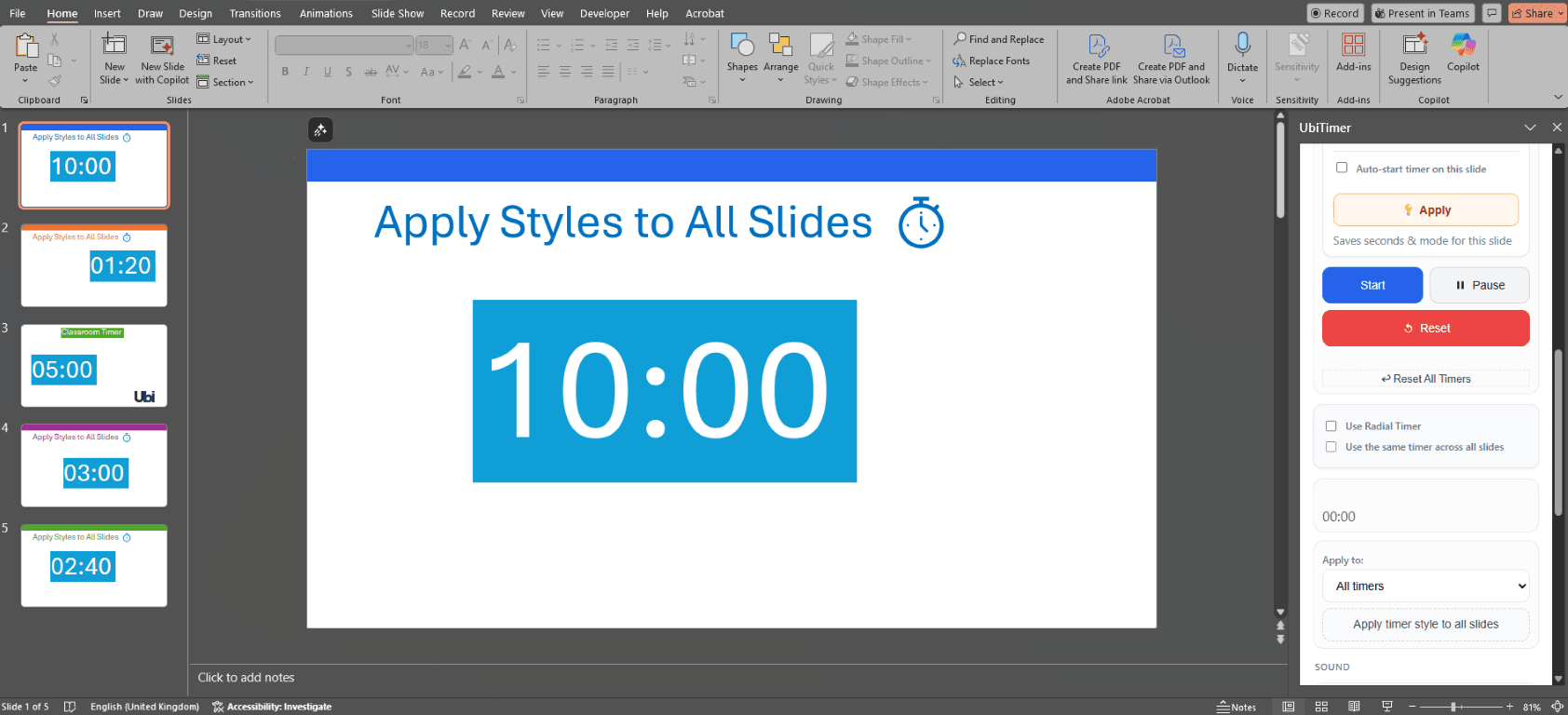
- Go to Home → UbiTimer to open the UbiTimer taskpane.
- Choose your timer style: digital countdown or radial (circular) timer.
- Set the countdown duration, for example 5 minutes, 10 minutes, or 15 minutes.
- Enable the option “Use the same timer across all slides” (Global Timer Mode).
- Click “Add Timer to Slide” on the first slide where you want the countdown.
- Start the slide show and navigate normally — the same timer will continue counting down across slides.
You can still pause, resume, or reset the timer during your lesson or presentation using the UbiTimer controls.
Examples of Using a Timer Across Slides in Lessons and Presentations
Classroom Examples
- 10-minute silent revision where you flip through hints or model answers without resetting the timer
- 5-minute starter questions over several slides, with one shared countdown for the whole activity
- KS3 group task that moves from instructions, to scaffolds, to plenary, all under a single timed block
- End-of-lesson review questions where students can always see how much time is left
Presentation & Training Examples
- Breakout group tasks where you show different prompts without changing the overall timing
- Roundtable discussions that run for a fixed duration while you move between agenda slides
- Timed challenges where each stage is on a different slide but the countdown stays the same
How This Compares to Built-In PowerPoint Options
PowerPoint can control animation timings and transitions, but it does not provide a single timer that simply moves across slides with you. To see what PowerPoint offers by default, you can explore the official Microsoft PowerPoint help centre , but for most teachers and presenters, that still leaves a gap when you need a true timer across slides.
UbiTimer fills this gap by providing a dedicated Global Timer Mode designed precisely for this timer across slides PowerPoint use case. Instead of juggling external devices or complex animation tricks, you get a simple, classroom-ready solution.
FAQ — Timer Across Slides in PowerPoint
- Does PowerPoint have a built-in timer across slides?
- No. PowerPoint does not include a built-in timer that continues across slides. That is why many teachers and presenters choose UbiTimer for this timer across slides PowerPoint scenario.
- Can I use Global Timer Mode with radial (circular) timers?
- Yes. You can use either digital or radial timers with Global Timer Mode, and the countdown will still run across multiple slides.
- Does this work in PowerPoint for the web (Office 365)?
- Yes. UbiTimer is designed to work across Windows, Mac, and Office 365, so you can use a timer across slides in different environments.
- Can I pause or reset the timer during a lesson?
- Yes. You can pause, resume, and reset the global timer using UbiTimer controls without breaking the connection across slides.
Try a Timer Across Slides in PowerPoint with UbiTimer
If you want a reliable timer across slides PowerPoint setup that keeps one countdown running across your lesson or presentation, UbiTimer is built for you. It removes the need for separate timers and keeps your class or audience focused on the time remaining.
Download UbiTimer for PowerPoint View UbiTimer Tutorials
Need help getting started? Visit the support page or learn about free EDU options for schools.