
PowerPoint Timer Starts Automatically — Hands-Free Countdown for Lessons & Presentations
If you have ever wished that your powerpoint timer starts automatically the moment a slide appears, you are not alone. Teachers, trainers, and presenters all want a countdown that simply begins when the slide loads, without needing an extra click, animation trick, or macro.
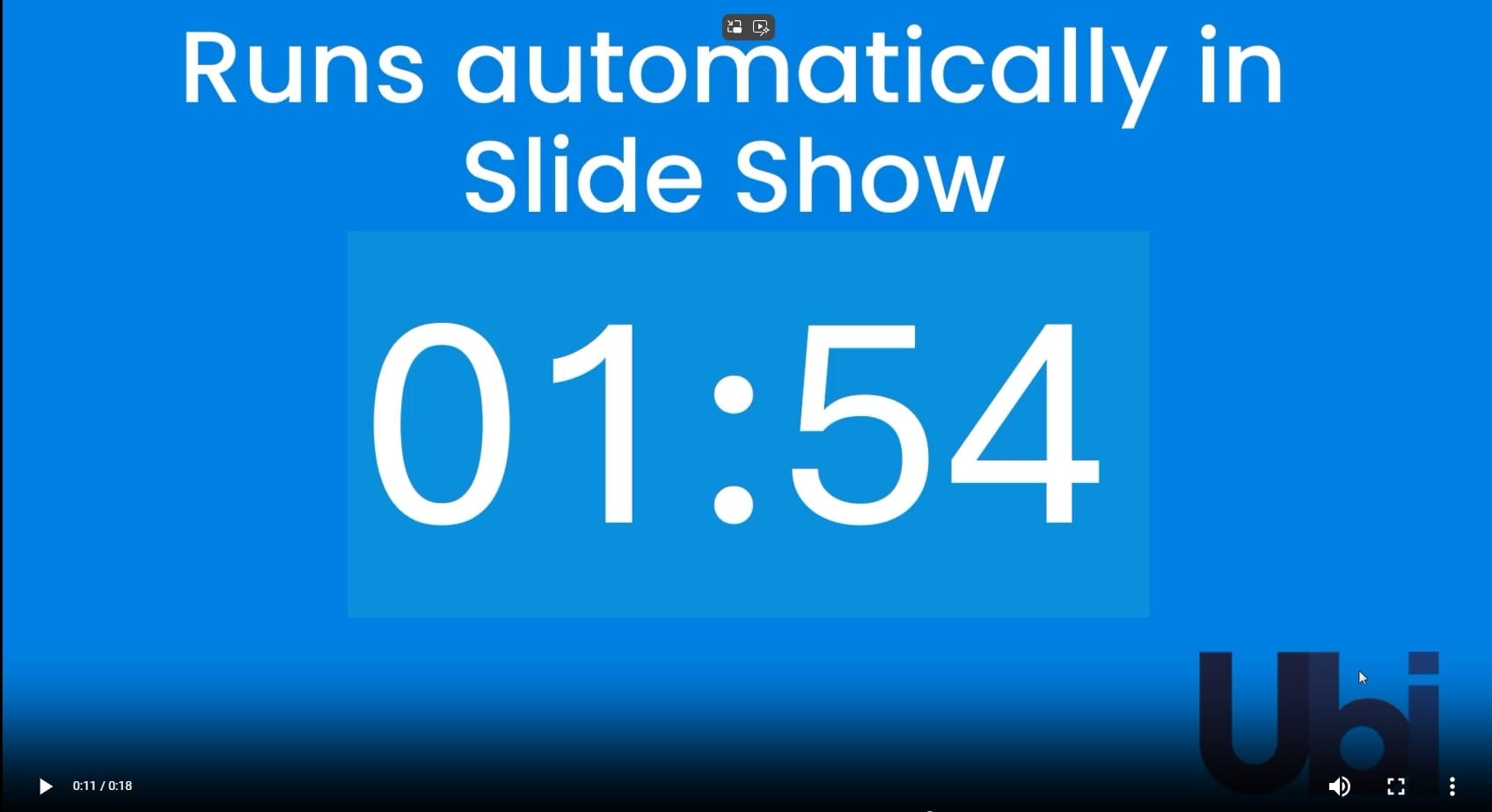
UbiTimer makes this easy by adding an auto-start option to your PowerPoint timers, so your countdown can begin the moment a slide is shown.
Why a PowerPoint Timer Starts Automatically is So Useful
When your powerpoint timer starts automatically, you remove one more thing to remember in the classroom or during a live presentation. Instead of clicking to start the timer and then remembering your script, the countdown simply begins as soon as you land on the slide.
This is especially powerful for:
- Lesson starters — Do Now tasks that begin as students walk in
- Behaviour routines — quick, calm reset timers with a visible countdown
- Transitions — 30–60 seconds to switch tasks, move tables, or pack away
- Silent reading and writing — focused periods where time is clear but you stay hands-free
- Workshops and training — group tasks that need strict timing and predictable pacing
Auto-start timers keep your focus on the class or audience instead of fiddling with clicks or animations.
How to Make Your PowerPoint Timer Start Automatically with UbiTimer
PowerPoint on its own does not provide a built-in countdown timer that starts automatically. You can chain animations together, but that is fragile and hard to reuse. UbiTimer adds a simple, reliable way to ensure your powerpoint timer starts automatically whenever a particular slide is shown.
- Open your presentation in PowerPoint.
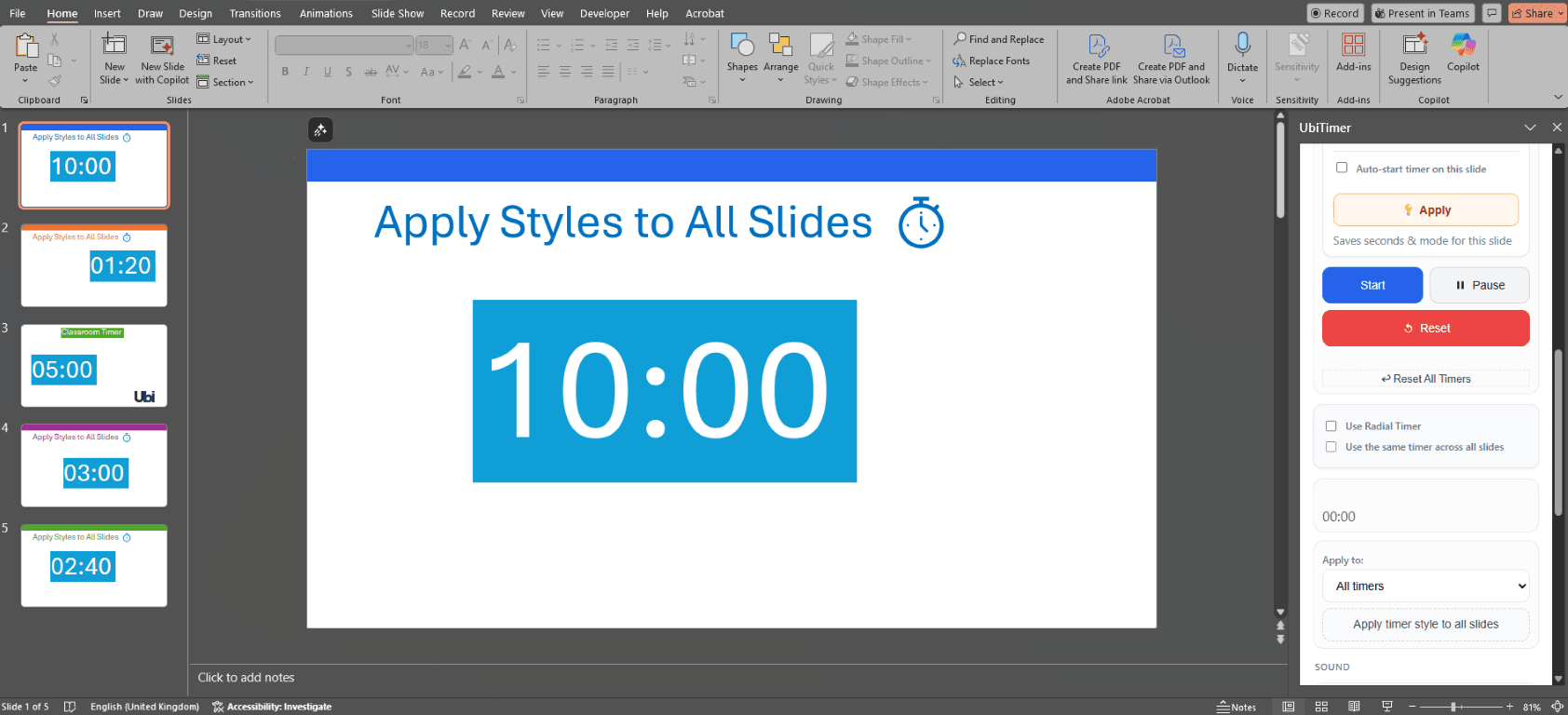
- Go to Home → UbiTimer to open the UbiTimer add-in.
- Choose your timer type: digital countdown or radial (circular) timer.
- Set the duration you need (for example, 2 minutes, 5 minutes, or 10 minutes).
- Enable the option “Auto-start timer on this slide” in the UbiTimer panel.
- Click “Add Timer to Slide” and position the timer where it won’t block your content.
- Start the slide show and navigate to that slide — the timer will now start automatically.
You can still pause, resume, or reset the timer during your lesson or presentation using the UbiTimer controls.

Examples of When a PowerPoint Timer Starts Automatically
In the Classroom
- Starter (Do Now): A 5-minute countdown begins as soon as students see the slide, helping them settle quickly and focus on the first task.
- Transition Timer: A 30-second or 1-minute countdown starts automatically to manage pack-away routines and table moves without constant reminders.
- Behaviour Reset: A short visual timer gives students a calm, predictable window to reset, face the front, and get ready to continue.
- Exam-style practice: A 10-minute timed question starts as soon as the question slide appears, building pacing skills for KS3 and KS4.
In Presentations and Training
- Breakout tasks where the timer appears and starts as soon as you show the task slide
- Two-minute reflection or discussion windows that run without any extra clicking
- Lightning-round Q&A sessions with strictly timed answers
Timed activities are a common strategy in modern classrooms and training sessions because they create clear boundaries and expectations. Many teaching resources recommend using visible timers to support behaviour and focus during lessons.
How Auto-Start Timers Compare to Built-In PowerPoint Options
PowerPoint can auto-play animations and media, but not a true countdown timer with minutes and seconds. To learn more about what PowerPoint can do by default, you can check the official Microsoft PowerPoint help pages, but for most teachers and presenters, those tools are not enough.
UbiTimer avoids fragile animation chains and instead provides a dedicated timer that can be set to auto-start, run across multiple slides with Global Timer Mode, or be used as a simple per-slide lesson timer. It is designed specifically for real classrooms and live presentations.
FAQ — When Your PowerPoint Timer Starts Automatically
- Does PowerPoint include an auto-start countdown timer?
- No. PowerPoint does not have a built-in countdown timer that starts automatically. You can auto-play animations, but for a proper timer you need an add-in like UbiTimer.
- Can my PowerPoint timer start automatically without animations?
- Yes. With UbiTimer, your powerpoint timer starts automatically when the slide loads, without relying on complex animation sequences.
- Can I use auto-start with radial (circular) timers?
- Yes. Auto-start works with both digital and radial countdown timers in UbiTimer.
- Does this work in PowerPoint for the web (Office 365)?
- Yes. UbiTimer is designed to work across Windows, Mac, and Office 365, so you can use auto-start timers in different environments.
Make Your PowerPoint Timer Start Automatically with UbiTimer
If you want a reliable setup where your powerpoint timer starts automatically as soon as the slide appears, UbiTimer is built for you. It removes the extra clicks and lets you focus on your class or audience.
Download UbiTimer for PowerPoint View Tutorials
Need help getting started? Visit the support page or learn about free EDU options for schools.