
PowerPoint Stopwatch
Add a live stopwatch in PowerPoint in seconds. UbiTimer lets you run a clear count-up timer on any slide in Slide Show mode on Windows, Mac, and PowerPoint for the web.
 AppSource Verified
Used by teachers, trainers, and presenters
AppSource Verified
Used by teachers, trainers, and presenters- ✔ Add a stopwatch in under 1 minute
- ✔ Visible during Slide Show
- ✔ Count-up timer for Q&A and rehearsals
- ✔ Works on Windows, Mac, and web
Compatible with Windows & Mac, including Microsoft 365 and PowerPoint for the web.
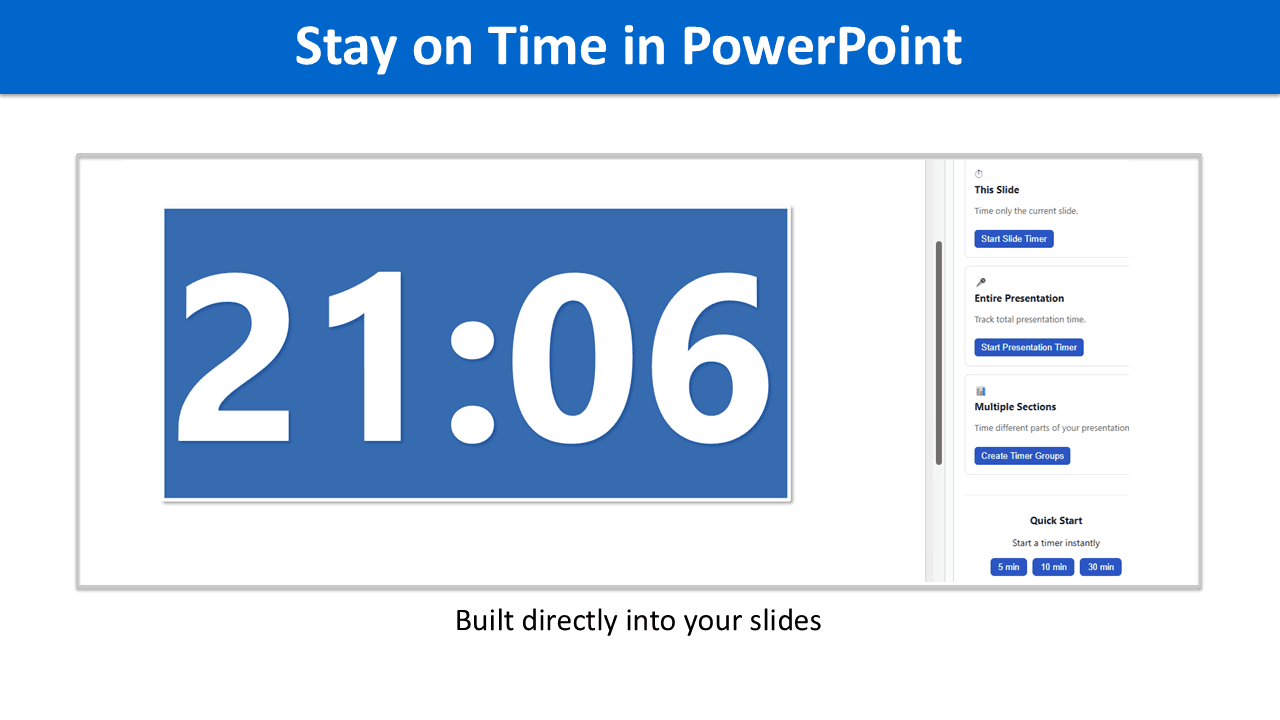
How to Add a Stopwatch in PowerPoint
The fastest way to add a PowerPoint stopwatch is to use an add-in built for Slide Show mode. UbiTimer lets you insert a live count-up timer on any slide and start presenting without switching to another app.
Add a stopwatch with UbiTimer
- Install UbiTimer from Microsoft AppSource.
- Open your presentation in PowerPoint.
- Insert a stopwatch on the slide where you want to track time.
- Choose the style, size, and position.
- Start Slide Show mode and run the stopwatch live.
When a stopwatch works best
- Timed speaking practice
- Q&A sessions
- Open-ended classroom activities
- Workshops and discussion segments
- Rehearsals and run-throughs
Why Use a Stopwatch in PowerPoint?
A stopwatch in PowerPoint is useful when you want to track elapsed time instead of counting down to zero. That makes it ideal for discussions, rehearsals, Q&A, and tasks where the duration is not fixed in advance.
Unlike a countdown timer, a PowerPoint stopwatch helps you measure how long something has been running while keeping your presentation visible in Slide Show mode.
Key Features of UbiTimer for PowerPoint Stopwatchs
UbiTimer gives you a clean, visible count-up timer for PowerPoint that works during live presentations and practice sessions.
Live stopwatch
Add a stopwatch to any PowerPoint slide and track elapsed time live during your presentation.
Presenter-friendly
Keep track of speaking time during talks, Q&A, and rehearsals without leaving PowerPoint.
Visible in Slide Show
The stopwatch runs during Slide Show mode, so it stays useful while you present.
Clear display styles
Choose a stopwatch style that stays readable on your slides and fits your presentation layout.
Windows + Mac support
Works with PowerPoint on Windows, macOS, and Microsoft 365.
Works alongside countdown timers
Use stopwatch mode when you need elapsed time, or switch to a countdown timer for fixed segments.
PowerPoint Stopwatch vs Countdown Timer
Both timer types are useful in PowerPoint, but they serve different goals. A stopwatch tracks elapsed time, while a countdown timer helps you stay within a fixed time limit.
| Use Case | Stopwatch | Countdown Timer |
|---|---|---|
| Track elapsed time | Yes | No |
| Fixed time limit | No | Yes |
| Q&A and discussion timing | Best fit | Possible |
| Timed activities and exams | Possible | Best fit |
| Rehearsals and speaking practice | Best fit | Also useful |
PowerPoint Stopwatch FAQ
Does PowerPoint have a built-in stopwatch?
No. PowerPoint does not include a simple built-in stopwatch for live presentations. You can create timing effects manually, but a dedicated add-in is easier to use and manage.
How do I add a stopwatch to PowerPoint?
You can add a stopwatch to PowerPoint with UbiTimer by inserting a count-up timer directly onto a slide. It runs live in Slide Show mode and can be styled to fit your presentation.
What is the difference between a PowerPoint stopwatch and a countdown timer?
A stopwatch counts up from zero and tracks elapsed time. A countdown timer starts at a set number and counts down to zero. A stopwatch is better for open-ended segments like discussions or practice runs.
Can I use a stopwatch during Slide Show mode?
Yes. UbiTimer is designed to run live during Slide Show mode, so the stopwatch remains useful while you present.
Does it work on Mac?
Yes. UbiTimer works on both Windows and Mac, including Microsoft 365 and PowerPoint for the web.
Can I switch between stopwatch and countdown modes?
Yes. UbiTimer supports both stopwatch and countdown timer modes, so you can choose the one that fits your presentation.
More PowerPoint Timer Resources
Explore related guides for countdown timers, presentation timers, and other ways to manage time in PowerPoint.
- PowerPoint Countdown Timer – add a live countdown timer to PowerPoint slides.
- How to Add a Timer in PowerPoint – step-by-step instructions for adding timers to slides.
- Presentation Timer for PowerPoint – timing tools for talks, meetings, and seminars.
- Radial Timer for PowerPoint – a visual timer for classrooms and training sessions.
- Global Timer for PowerPoint – run one timer across your full presentation.
- Classroom Timer for PowerPoint – timer ideas and tools for teachers and timed activities.
Add a Stopwatch to PowerPoint in Minutes
Install UbiTimer to add a live PowerPoint stopwatch or countdown timer to your slides and keep better control of time while you present.