
PowerPoint Timer Per Slide vs Global Timer
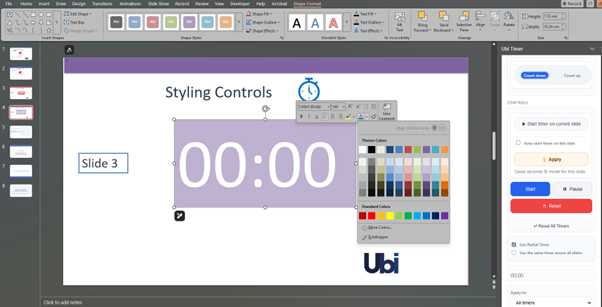
When using a PowerPoint presentation timer, you can choose between two timer modes: Global Timer and Per-Slide Timer. Understanding the difference helps you control timing more effectively during presentations.
Global Timer
A Global Timer runs across multiple slides and continues counting even when you move to the next slide.
When to use a Global Timer
- Timing an entire presentation
- Conference speaking slots
- Lectures with a fixed duration
- Workshops or training sessions
Example: If you set a 20-minute global timer, it continues running as you move through the slides.
Per-Slide Timer
A Per-Slide Timer applies only to the current slide. Each slide can have a different timer duration.
When to use Per-Slide Timers
- Timed speaking slots for multiple presenters
- Slide-by-slide pacing
- Interactive presentations
- Training sessions with timed sections
Example: Slide 1 may have a 60-second timer, while Slide 2 may have a 3-minute timer.
Why the Same Timer Appears on Every Slide
If you see the same timer across multiple slides, you are likely using a Global Timer.
To create different timers for each slide, use the Per-Slide Timer option in UbiTimer.
How to Create a Per-Slide Timer
- Go to the slide where you want a timer.
- Open the UbiTimer task pane.
- Select Per-Slide Timer.
- Set the time.
- Click Start.
The timer will now apply only to that slide.
Related Guides
UbiTimer is a powerful PowerPoint presentation timer add-in designed for teachers, speakers, and presenters who need reliable timing tools during presentations.
UbiTimer makes it easy to create a presentation timer for PowerPoint, whether you need timers per slide or across the entire presentation.