
UbiTimer Help
Frequently Asked Questions UbiTimer FAQ
Find answers about UbiTimer setup, Classroom Free, Pro Lifetime, Presenter Plus, Team / School plans, PowerPoint compatibility and common timer issues.
Setup and basic use
Yes. UbiTimer works with supported Microsoft PowerPoint environments on Windows and Mac. Some older perpetual versions of Office may have limited add-in support. Check compatibility on our Support page.
You need internet access to install UbiTimer and sign in. Some features, licensing checks and updates may also require connectivity depending on your Microsoft 365 environment.
Click once inside the timer window where supported. For classroom timing ideas, see our Classroom Timer for PowerPoint guide.
To start or restart the timer, click Pause once, then click Start once. Avoid double-clicking. For troubleshooting tips, see our Support page.
PowerPoint add-ins have limits during full Slide Show mode. In most cases, set up or start the timer before presenting, then use the available UbiTimer controls depending on your PowerPoint environment.
Classroom Free and plans
Yes. Teachers can start with UbiTimer Classroom Free for everyday classroom timing. Existing EDU users keep their legacy access. Advanced features are available in Pro Lifetime, Presenter Plus and Team / School plans.
Classroom Free includes essential PowerPoint timer tools for everyday classroom use, including countdown and count-up timers, per-slide timers and basic classroom styling.
Pro Lifetime is a one-time individual licence for advanced timer features, including radial timers, global timer, presenter-only mode, timer groups, snapshots, custom alarm sounds and advanced styling. It does not include practice analytics. See the latest price on our Pricing page.
Presenter Plus is an annual plan for users who need the full presenter toolkit plus practice analytics and pacing summaries.
Yes. Team / School plans are available for departments, schools and organisations that need multiple users or wider deployment. See the Team / School plans page.
It depends on the plan. Pro Lifetime is a one-time lifetime licence for individual users. Presenter Plus and Team / School plans are annual subscriptions. Learn more on our Pricing page.
With an individual licence, you can use UbiTimer when signed in with the licensed account. For multiple users, departments, schools or organisations, use a Team / School plan. See details on the Pricing page.
Timer features
Use Global Timer Mode to keep one timer running across multiple slides. This is an advanced feature available in Pro Lifetime, Presenter Plus and Team / School plans. More setup details are available on our Global Timer page.
Yes. Global Timer Mode keeps one timer running across multiple slides. This is an advanced feature available in Pro Lifetime, Presenter Plus and Team / School plans. See setup steps on the Global Timer page.
Basic styling is available in Classroom Free. Advanced styling and radial / circular timers are available in Pro Lifetime, Presenter Plus and Team / School plans.
Custom alarm sounds are available in Pro Lifetime, Presenter Plus and Team / School plans. If you need help with sounds, contact us via the Support page.
Use PowerPoint Presenter View or your display settings to control what appears on the projected screen. Presenter-only mode is available in Pro Lifetime, Presenter Plus and Team / School plans.
Troubleshooting
Reload the timer from the context window. Click the caret in the top-right of the timer window, choose the arrow button, then select Reload. Step-by-step guidance is available in our Support section.
Check that: (1) the timer is not hidden behind other objects, (2) the timer has been inserted on that slide, and (3) the slide uses a standard layout. For Global Timer Mode, check that the relevant global timer settings are enabled. See fixes on Support.
If a timer is currently active, PowerPoint may not allow it to be deleted.
How to delete a timer:
- Open the UbiTimer task pane.
- Reset the timer so it is no longer running.
- Select the timer on the slide.
- Press Delete or Backspace as normal in PowerPoint.
You can disable auto-start on a per-slide basis where supported.
Steps:
- Open the UbiTimer task pane on that slide.
- Find the auto-start setting for that slide.
- Turn it off.
- During the presentation, press Start when you are ready.
You can disable the alarm sound where sound settings are available.
Steps:
- Open the UbiTimer task pane.
- Go to the sound or alarm section.
- Turn off the alarm sound option.
The timer will then finish silently.
This is controlled by the visual warning setting.
To disable the red warning:
- Open the UbiTimer task pane.
- Go to the duration or warning section.
- Turn off the red warning option.
This can be useful when using the timer over images, videos or branded slide backgrounds.
Privacy, payments and support
UbiTimer does not send your slide content to our servers. Settings are stored locally or within the Microsoft Office add-in context where supported. See our Privacy policy.
We accept major cards through secure checkout providers. Refunds are handled under our refund policy. Contact us via Support if you need help with a purchase.
Install UbiTimer on the new computer and sign in with the same licensed account. For Team / School plans, make sure the user is included in your licence seats. See steps on Support.
Ready to add a timer to PowerPoint?
Start with Classroom Free for everyday timing, or compare plans for advanced features such as global timer, radial timer, presenter-only mode and timer groups.
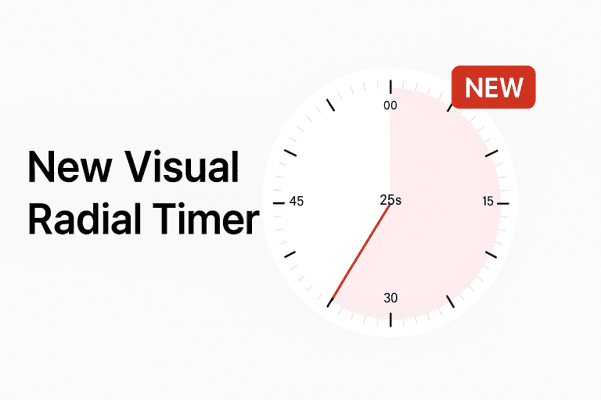
Radial timers are available in Pro Lifetime, Presenter Plus and Team / School plans.