
PowerPoint Timer for Presenters (Hide Timer from Audience)
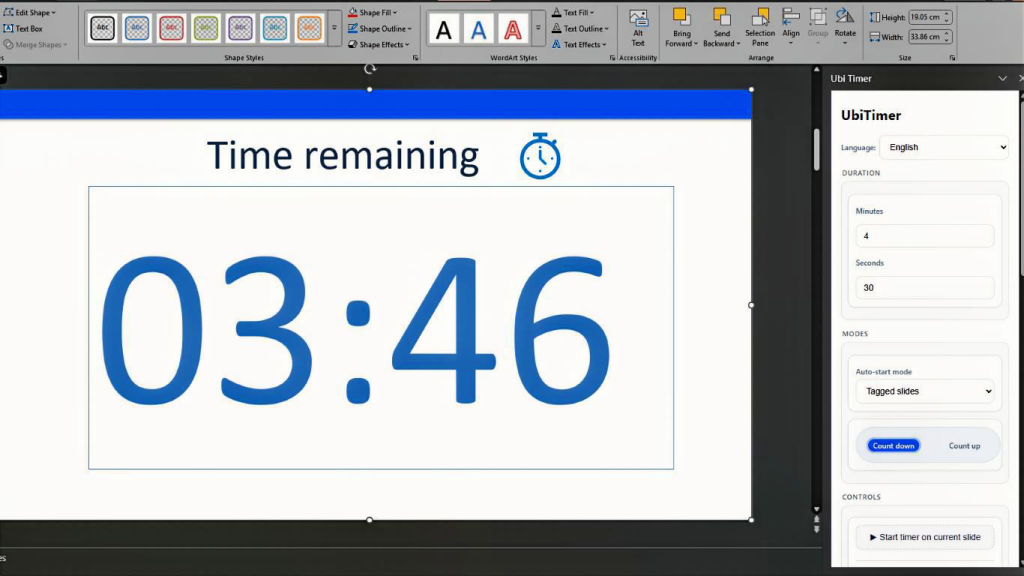
Many presenters want to keep track of time without showing a timer to the audience. A PowerPoint timer for presenters allows you to monitor your speaking time privately while keeping slides clean and distraction-free.
With UbiTimer, you can display the timer only in the presenter preview while keeping it hidden from the audience.
Why Use a Presenter-Only Timer?
- Stay within your allocated presentation time
- Avoid distracting the audience with visible timers
- Manage conference speaking slots
- Control pacing during lectures or training sessions
How to Show the Timer Only to the Presenter
- Open the UbiTimer task pane in PowerPoint.
- Go to the Timer tab.
- Under Timer Visibility, select Presenter Only.
- Click Start Timer.
The timer will now appear in the presenter preview panel but will not be visible on the slide shown to your audience.
When This Feature Is Useful
- Conference presentations
- Academic lectures
- Training workshops
- Panel discussions
- Pitch presentations
Common Issues
The timer is visible to the audience
Make sure Presenter Only is selected under Timer Visibility.
The timer is not visible in presenter preview
Ensure that Presenter View is enabled in PowerPoint slideshow settings.
Related Guides
If you are looking for a reliable PowerPoint presentation timer, try UbiTimer Pro for advanced features including radial timers, slide timers, timer groups, and presenter-only display.