
Countdown and activity timing inside PowerPoint
Classroom Timer for PowerPoint — Countdown Activities & Lessons
A classroom timer for PowerPoint lets you place countdown or count-up timing alongside the activity already displayed on your lesson slide. Use UbiTimer for starters, quizzes, group work, independent tasks, transitions and other timed classroom activities.
Keep the instructions and timer together in PowerPoint instead of switching to a separate browser timer, phone or stopwatch.
What Is a Classroom Timer for PowerPoint?
A classroom timer for PowerPoint is a timer used as part of a lesson presentation rather than in a separate timer application. The teacher can display the task, instructions and available time together while continuing to work in PowerPoint.
With UbiTimer, teachers can create countdown and count-up timing for everyday classroom activities. More advanced workflows are available when the timer needs to continue across slides, start automatically or behave differently in different parts of a presentation.
Countdown Timer
Set the amount of time available for an activity and show the remaining time on the PowerPoint slide.
Count-Up Timing
Track elapsed time when the activity does not need a fixed countdown duration.
Classroom Activities You Can Time in PowerPoint
Classroom timers can be used whenever an activity has a clear time window or when the class needs to see how much time remains.
Starters & Bell Work
Add a short countdown alongside retrieval questions, warm-ups or lesson-opening tasks.
Group Activities
Set a time window for collaborative tasks, paired discussion and group problem solving.
Independent Work
Display the available time beside written questions, practice tasks or individual activities.
Quizzes
Time individual questions, quiz rounds or short retrieval-practice activities.
Transitions
Use a short timer when students need to prepare for the next activity or lesson stage.
Student Presentations
Give individuals or groups a defined amount of time for classroom presentations.
5-Minute, 10-Minute and Custom Classroom Timers
The appropriate timer length depends on the classroom activity. UbiTimer lets you choose the duration rather than restricting you to one preset classroom timer.
| Timer length | Example use |
|---|---|
| 1–2 minutes | Transitions, quick thinking or short responses |
| 3–5 minutes | Starters, retrieval questions or short classroom tasks |
| 5–10 minutes | Independent practice, quizzes or paired activities |
| 10–20 minutes | Extended tasks, group activities or revision work |
See the PowerPoint Countdown Timer guide for more about 5-minute, 10-minute and custom countdowns.
Keep the Classroom Timer Beside the Task
Because UbiTimer works with PowerPoint, the timer can be positioned with the content students are already viewing.
For example, a slide can show the activity instructions, questions and a five-minute countdown together rather than requiring the teacher to display a separate timer page.
Keep the timer clear of important slide content and test its position before using the presentation in class.
How to Add a Classroom Timer in PowerPoint
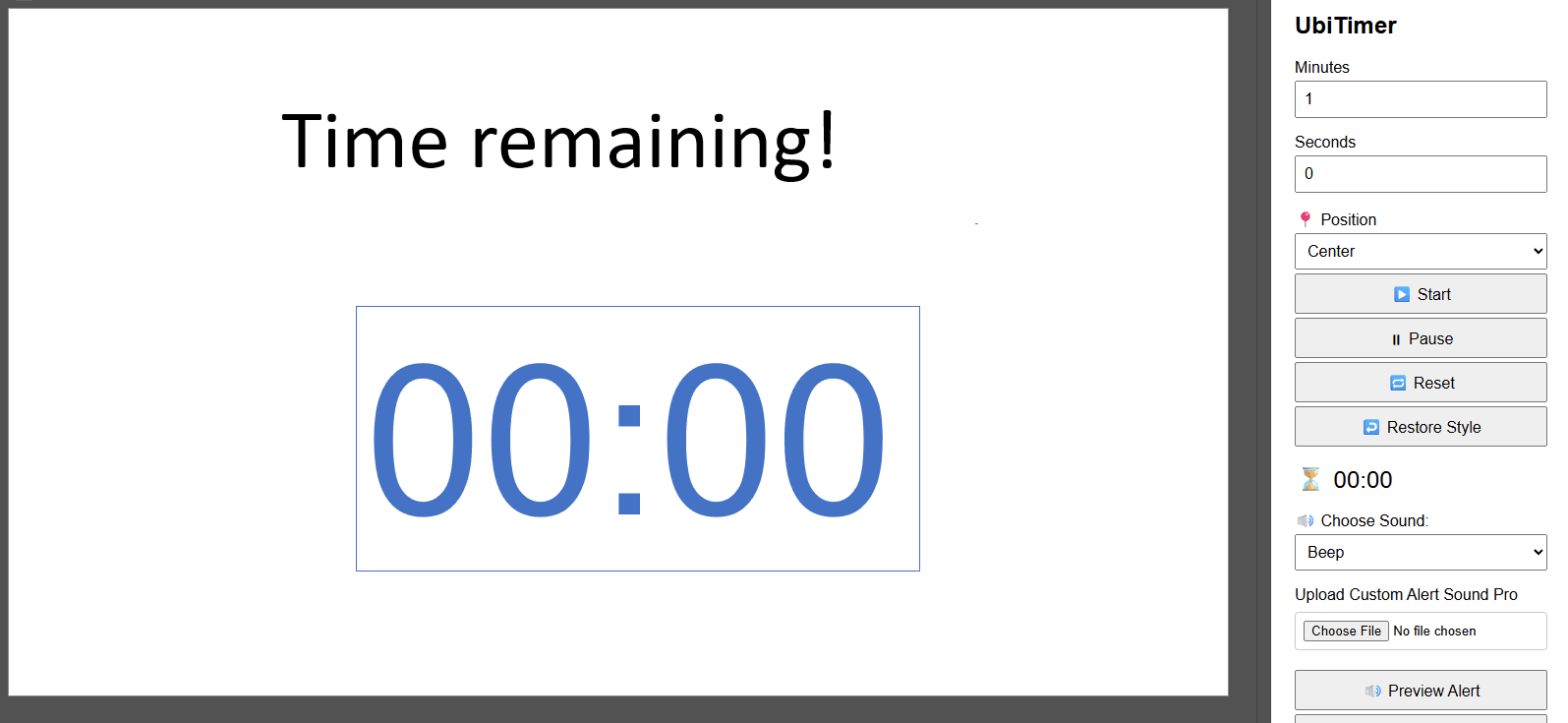
- Open your lesson presentation Open the PowerPoint deck you plan to use in class.
- Open UbiTimer Launch the UbiTimer add-in from PowerPoint.
- Choose the timing mode Select countdown or count-up timing for the activity.
- Set the duration Choose the amount of time available for the task.
- Position the timer Place the timer where it works with the other content on the slide.
- Run the lesson Start your PowerPoint presentation and use the timer with the activity.
For a general setup walkthrough, see how to add a timer in PowerPoint .
Advanced Classroom Timing in PowerPoint
A standard per-slide countdown is enough for many classroom tasks. More complex lesson structures may need a different timing workflow.
Timer Across Slides
Keep one countdown running while moving through several PowerPoint slides.
Radial Timer
Display remaining time as a circular visual countdown.
Auto-Start
Configure timers to begin automatically during selected PowerPoint workflows.
Timer Groups
Give different ranges of slides their own timing settings for separate classroom activities.
Countdown to a Specific Time
Count down towards an exact clock time such as the end of a break or the start of the next session.
Presenter-Only Timer
Monitor timing privately when the class does not need to see the timer.
Why Use a Timer Inside PowerPoint?
An online classroom timer can be useful when you only need a standalone clock. A PowerPoint classroom timer is useful when the timer needs to sit alongside the lesson content you are already presenting.
UbiTimer is designed for this PowerPoint-based workflow.
Looking for Teacher-Specific Ideas?
This page focuses on using a classroom timer in PowerPoint. For a wider guide to lesson workflows for teachers, including starters, revision, student presentations and lesson timing, see:
Classroom Timer for PowerPoint FAQ
Can I add a classroom countdown timer to PowerPoint?
Yes. UbiTimer lets you use countdown timing inside PowerPoint for classroom activities, tasks and lesson presentations.
Can I create a 5-minute classroom timer?
Yes. You can configure a five-minute countdown as well as other durations that fit the classroom activity.
Can I create a 10-minute classroom timer?
Yes. UbiTimer supports custom countdown durations, including a ten-minute classroom countdown.
Can a classroom timer continue across slides?
Yes. UbiTimer Global Timer can keep one timing session running while you move through multiple PowerPoint slides. See the Timer Across Slides guide .
Can I use different timers for different activities?
Timer Groups can assign different timing settings to different slide ranges. See the PowerPoint Timer Groups guide .
Is there a free classroom timer option?
Yes. Classroom Free provides everyday countdown and count-up timing. Advanced features are available with eligible paid plans.
Does UbiTimer work on Windows and Mac?
UbiTimer is designed for supported Microsoft PowerPoint environments on Windows and Mac. Exact behaviour can depend on the PowerPoint version and organisation settings.
Related Classroom & PowerPoint Timer Guides
Add a Classroom Timer to PowerPoint
Use countdown and count-up timing alongside your lesson slides for classroom activities, quizzes, transitions, group work and independent tasks.