
Circular Countdown Timer PowerPoint — Visual Timers for Lessons & Presentations
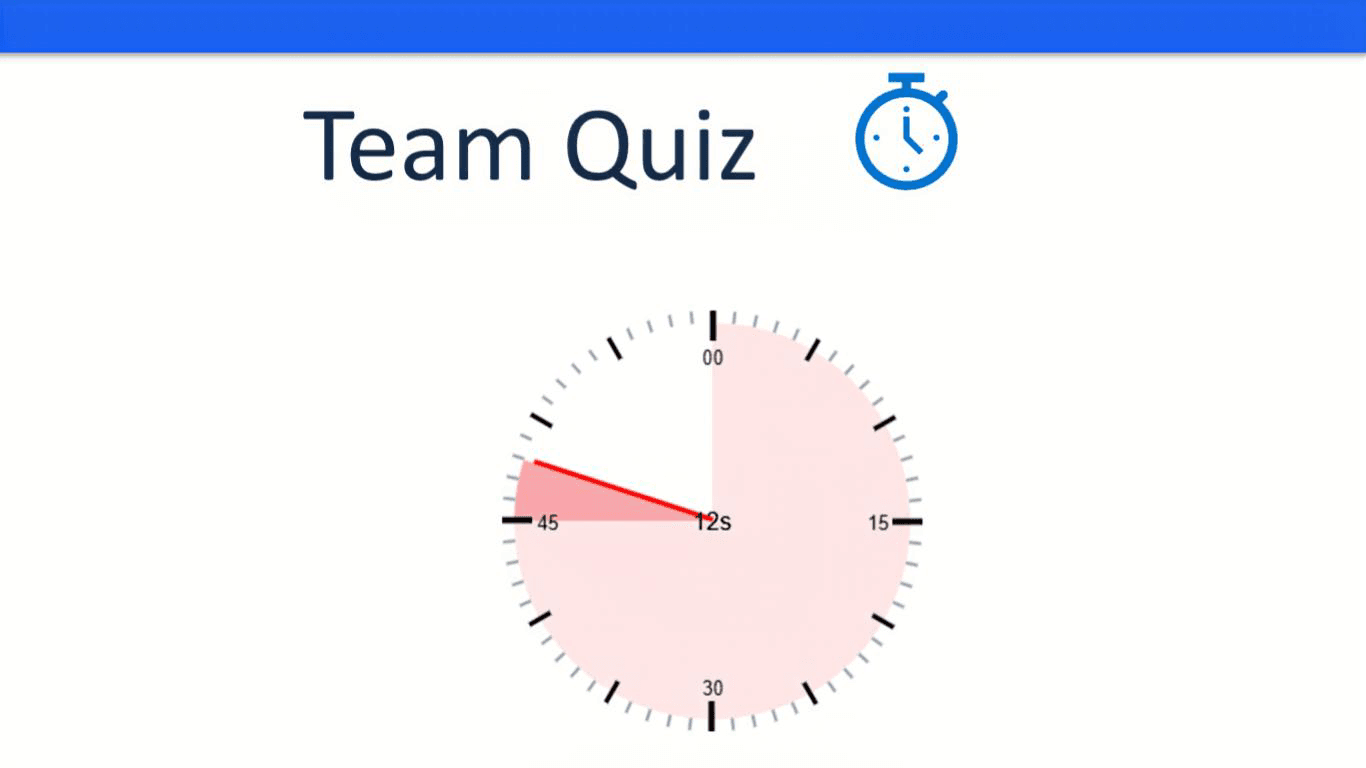
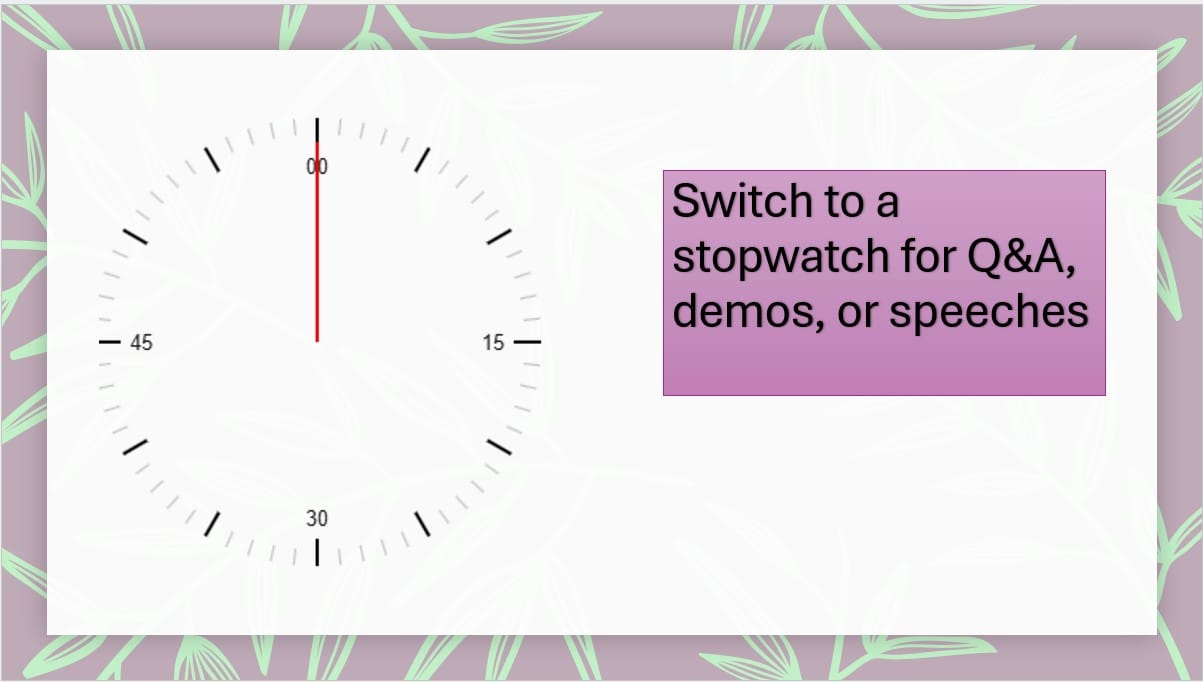
A circular countdown timer PowerPoint slide gives students and audiences a clear visual sense of time passing, using a shrinking ring instead of just numbers. This makes radial timers useful for classroom routines, timed activities and live presentations.
UbiTimer adds a smooth radial timer to PowerPoint, so you can use circular countdowns without complex animations or video tricks.
Note: Radial / circular timers are advanced UbiTimer features available in Pro Lifetime, Presenter Plus and Team / School plans.
Why a Circular Countdown Timer PowerPoint Slide Helps Students Focus
When students can see time disappearing in a visual, circular way, they often find it easier to stay focused and manage their effort. A circular countdown timer PowerPoint slide works particularly well in classrooms, training sessions and presentations where pace and structure matter.
Radial timers are especially useful for:
- Lesson starters — clear 3–5 minute “Do Now” activities
- Behaviour routines — short resets or transitions with a visible countdown
- Timed writing tasks — for exam-style practice or sentence-level work
- Group and pair discussions — so students know how long they have left
- Silent reading or reflection — where a visual timer supports self-regulation
Instead of glancing at a number in the corner, students can see a ring shrinking, which is easier to track from across the room.
How UbiTimer Adds a Circular Countdown Timer in PowerPoint
PowerPoint does not include a native radial or circular countdown. You can draw circles and animate them, but that quickly becomes complicated and hard to maintain across multiple slides. UbiTimer provides a dedicated circular countdown timer PowerPoint option so you can add a radial timer more easily.
- Open your presentation in PowerPoint.
- Go to Home → UbiTimer to open the UbiTimer taskpane.
- Select the radial or circular timer style in UbiTimer.
- Set the countdown duration, for example 2, 3, 5 or 10 minutes.
- Choose a colour and thickness that will stand out on your slide and projector.
- Click “Add Timer to Slide” and position the circular timer where you want it.
- Start the slide show — the radial timer will animate as the time counts down.
You can also combine the radial style with Global Timer Mode if you want the same circular countdown to run across multiple slides. Global Timer Mode is also an advanced paid feature.
Examples of Using Circular Timers in Lessons and Presentations
Classroom Examples
- 3-minute “Think–Pair–Share” activity with a radial timer visible on the board
- 5-minute exam-style writing task where students can see the circular countdown clearly
- 2-minute behaviour reset after a high-energy activity, using a calm visual countdown
- 10-minute revision block where students can track time visually while they work
Presentation & Training Examples
- Timed breakout room activities where the circular countdown is shown on screen
- Short reflection or note-taking periods between slides
- Q&A segments where each question or speaker has a limited time slot
How Circular Timers Compare to Built-In PowerPoint Options
PowerPoint itself does not provide a proper circular countdown, only drawing tools and animations. If you want to see what is available by default, you can review the official Microsoft PowerPoint support pages .
UbiTimer is designed to fill this gap, providing a clear radial timer that works inside PowerPoint and can be customised to suit your slide design.
FAQ — Circular Countdown Timer in PowerPoint
- Does PowerPoint have a built-in circular countdown timer?
- No. PowerPoint does not have a native radial timer. UbiTimer adds a circular countdown timer PowerPoint option that can be inserted without complex animations or video workarounds.
- Is the circular / radial timer included in Classroom Free?
- No. Classroom Free includes essential everyday timer tools. Radial / circular timers are advanced features available in Pro Lifetime, Presenter Plus and Team / School plans.
- Will the circular timer be visible at the back of the classroom?
- Yes. UbiTimer’s radial timer is designed to be large and high-contrast, so it can remain readable on projectors and large classroom displays when positioned carefully.
- Can I use circular timers with Global Timer Mode?
- Yes. You can combine the radial style with UbiTimer’s Global Timer Mode so the circular countdown runs across multiple slides. Both are advanced paid features.
- Can I change the colour and size of the circular timer?
- Yes. You can adjust the size and choose colours that suit your slide background and classroom lighting.
Add a Circular Countdown Timer to Your PowerPoint Slides
If you want a clear, visual circular countdown timer PowerPoint slide that helps students and audiences manage their time, UbiTimer makes it easy. You can add radial timers for starters, transitions, Q&A segments and revision tasks.
Get Pro Lifetime — $19.99 Compare UbiTimer Plans
Need help getting started? Visit the support page, try Classroom Free, or compare Pro Lifetime, Presenter Plus and Team / School plans.